Add music to your video, and keep the voice clear
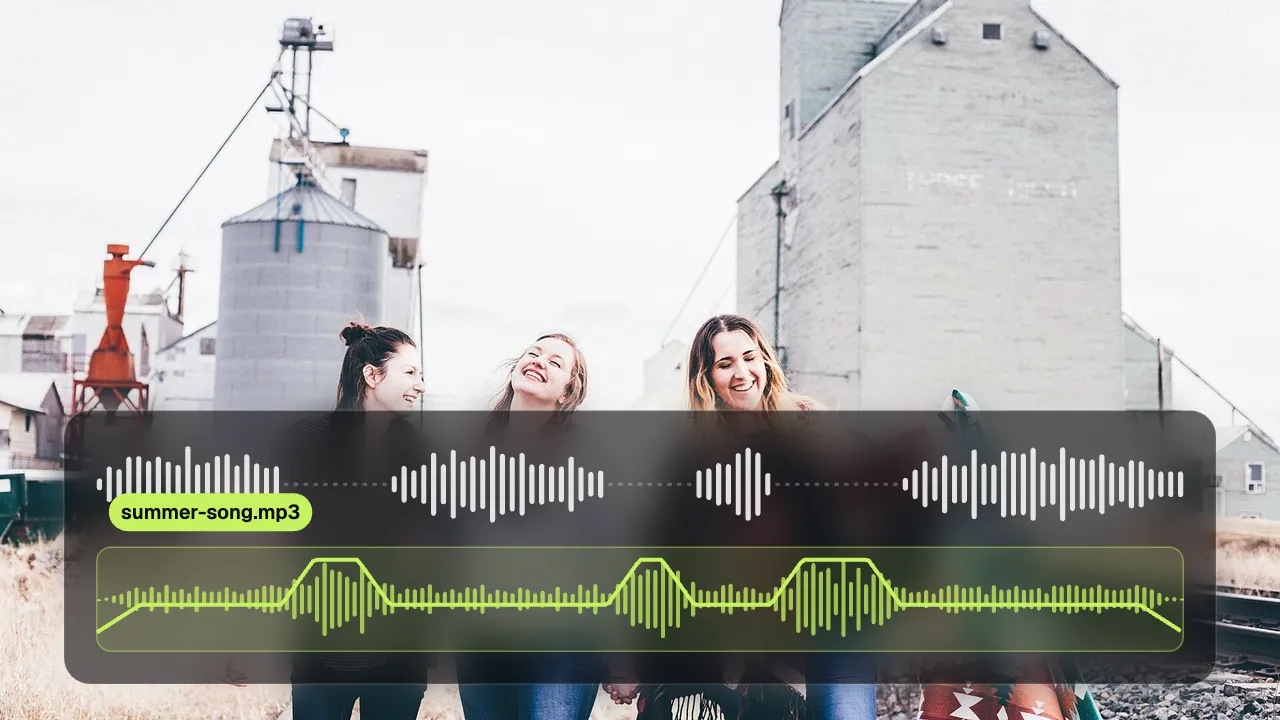
Put your own song or sound under a video and it is mixed for you: the music drops while someone speaks and comes back after, fades in and out, and starts over if the video is longer. Everything happens in your browser; neither the video nor the song is uploaded.
Drop your video here
Choose your videoMP4, MOV, WebM or MKV. It opens right here, on your device.
- Nothing uploaded
- No sign-up
- No watermark
How it works
Open your video
Drop an MP4, MOV, WebM or MKV, or a screen recording made in Shycut. It opens in your browser; nothing is sent anywhere.
Add the music
In the Audio tab, tap “Add music” and pick a song: it starts at the beginning and lowers itself under speech. Or import it into the media list and drag it to any moment.
Mix and export
Set its volume, fades and length, listen in the preview, then save a new MP4 with the music mixed in.
What you get
- Quieter while someone speaks
- With “Lower while someone speaks” on, the music gently drops under every sentence in the video and comes back in the pauses.
- Fades and loops
- “Fade in and out” softens the start and end, and “Start over when it ends” repeats a short track to cover a long video.
- Place it anywhere
- Drag the music bar on the timeline to move it, or pull an edge to make it shorter. Start it at the playhead or from the beginning.
- Runs smoothly over your cuts
- Music plays on through cut silences, joined clips and sped-up parts, at its own pace, so it never stutters at an edit.
- Several sounds at once
- Add a song and a sound effect, each with its own volume, or replace the video’s own sound and keep only the music.
- Your files stay yours
- MP3, M4A, AAC, WAV, FLAC and more are read in your browser. The song is mixed on your device and never uploaded.
When a video needs music
Reels and TikToks
A quick clip feels finished with a beat under it, and your voice-over stays easy to follow.
Travel and family videos
A song under a day of joined clips smooths over wind, traffic and the jumps in sound from clip to clip.
Tutorials and screen recordings
Quiet background music under an explanation keeps a long lesson from feeling empty, without drowning the voice.
Rides and motovlogs
Music over the quiet stretches of a ride, lowered whenever you talk to the camera.
How to add music to a video so the voice stays clear
Putting a song under a video is easy; making it sound right is the hard part. If the music is loud enough to be heard in the quiet moments, it covers the voice when someone talks. If it is quiet enough for the voice, it disappears in the pauses. Video editors solve this with “ducking”: the music is turned down while someone speaks and back up after. Doing it by hand means drawing volume curves around every sentence. Shycut does it for you, and it follows the edit when you cut or move things later.
Add a song from the Audio tab with “Add music” and it is placed from the very start of the video, with ducking switched on. To start it later, import it into the media list and choose “Add at the playhead”, or drag it onto the timeline. Each sound gets its own bar under the video: drag it to move it, pull an edge to shorten it, and choose it to set its volume. “Fade in and out” eases the start and end, and “Start over when it ends” repeats a short track until the bar ends, so a two-minute song can cover a ten-minute video.
The music belongs to the finished video, not to the clips under it. When silences are cut or a part is sped up, the picture and the voice jump, but the song plays on smoothly at its normal speed. You can also mute the video’s own sound and keep only the music, which suits a holiday montage where the original audio is just wind. The preview plays the same mix you will export, so you hear the ducking before you save. On export the voice and the music are mixed into one AAC track inside an H.264 MP4.
Shycut has no music library: bring a song you are allowed to use. Platforms such as Instagram, TikTok and YouTube may mute or restrict a video that uses music you don’t have the rights to, so tracks licensed for free use or music you made yourself are the safe choice. Whatever you pick, it never leaves your device. The song and the video are read and mixed in your browser, there is no account, and the result carries no watermark.
Tips for a good mix
- Keep the music volume low when there is talking: the voice should always win, and ducking does the rest.
- Start the music on an action, a cut or the first word, by dragging its bar on the timeline.
- Leave “Fade in and out” on unless the song starts and ends cleanly by itself.
- For a montage without speech, mute the video’s sound in the Audio tab and let the music carry it.
- Choose music you have the rights to, so the platform doesn’t mute your video after you post it.
Private by construction
- Runs on your device
- Your browser decodes, analyses and encodes the video. There is no server to send it to.
- Nothing is uploaded
- The counter in the header measures every byte this page sends. It stays at zero.
- Location data wiped
- Phones hide GPS positions inside videos. The exported file never carries them.
Questions
Which music files can I use?
Common formats such as MP3, M4A, AAC, WAV, FLAC, OGG and Opus, as long as your browser can play them. You can also put another video on top and use its sound.
Does Shycut have a music library?
No. You add your own files. That keeps the app free and private, and it means you know exactly where the music came from.
Will the music cover my voice?
Not with “Lower while someone speaks” on, which it is when you use “Add music”. The music drops under speech and comes back in the pauses; you can also set its volume yourself.
Can I add more than one song or sound?
Yes. Each one gets its own bar on the timeline with its own volume, fades and loop. Put them one after another or let a sound effect play over the song.
Can I remove the original sound and keep only the music?
Yes. Mute the audio in the Audio tab: the video’s own sound goes, and the music and sounds you added still play.
Is my song or video uploaded?
No. Both are read and mixed in your browser on your own device. There is no account, no watermark and no paid plan.
Your video stays with you.
Open Shycut, drop the video in and export. Free, with no account, and your video never leaves your device.
Choose your videoMore free tools
- Blur faces in video
- Pixelate a face
- Blur a moving face
- Blur children’s faces
- Blur license plates
- Dashcam video editor
- Remove location data
- Video metadata viewer
- Check a video’s location
- Remove silences
- Add captions to video
- SRT subtitle generator
- Resize for Reels & TikTok
- Merge videos
- Merge portrait and landscape
- Speed up video
- Screen recorder
- Motovlog editor
- Merge GoPro videos
- GoPro speed overlay
- Remove wind noise