Create an SRT subtitle file from your video
Shycut listens to your video on your own device and writes the speech as timed subtitle lines. Fix any word, then download a standard SRT file for YouTube, Vimeo or any video player. The video itself is never uploaded.
Drop your video here
Choose your videoMP4, MOV, WebM or MKV. It opens right here, on your device.
- Nothing uploaded
- No sign-up
- No watermark
How it works
Drop your video
MP4, MOV, WebM or MKV: a talk, a lesson, an interview or a vlog. It opens in your browser; nothing is sent anywhere.
The speech is written
It starts as the video opens: a Whisper speech model, downloaded once, transcribes the speech on your device and detects the language. On mobile data it waits for your tap. Nothing is burned into the picture.
Check and download
Tap any line to fix a word, then choose “Download SRT”. The file is offered again next to your finished video.
What you get
- A standard SRT file
- Numbered lines with a start and end time each, the format YouTube, Vimeo and most players and editors read.
- Fix it before you download
- Tap a line to correct a misheard name or word, or remove a line you don’t need.
- Timed to your edit
- Cut silences or parts by hand and the SRT times follow the shorter video you export.
- Language detected for you
- Whisper recognises about a hundred languages. If the guess is wrong, pick the language and create it again.
- Chapters from the same speech
- Shycut can suggest YouTube chapters from the captions, ready to copy into your video description.
- Nothing uploaded
- The audio is transcribed in your browser. There is no account, no watermark and no server in between.
When you need an SRT file
YouTube and Vimeo uploads
Add the SRT as a subtitle track. Viewers switch it on when they need it, and the picture stays clean when they don’t.
Courses and training videos
Learning platforms and video players that accept subtitle files let learners read along with every lesson.
Handing off to a translator
Give the SRT to someone who translates it line by line, keeping the timing that already fits your video.
Transcripts and notes
An SRT is plain text. Open it in any editor to quote a talk, write a summary or find a moment by its words.
What an SRT file is, and why upload one instead of burning text in
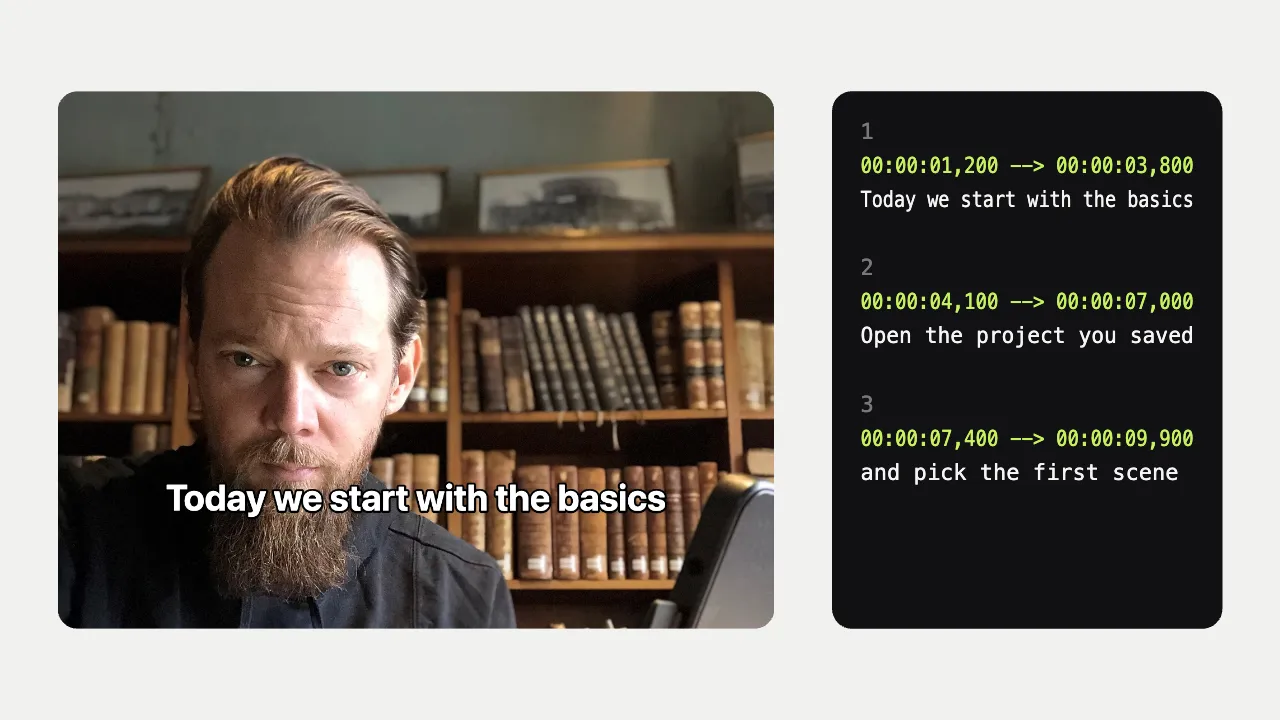
An SRT file is the simplest kind of subtitle file: plain text, made of numbered cues. Each cue has its number on the first line, then the times it appears and disappears, written like 00:00:04,200 --> 00:00:06,900, then one or two lines of text and an empty line before the next cue. Because the format is so simple, nearly every video platform, player and editor can read it, and you can open it in any text editor.
Burned-in captions become part of the picture: they are always on, at one size, and fixing a typo means exporting the whole video again. An SRT file travels next to the video instead. Viewers switch it on or off, the player draws it at a size that suits the screen, and people who are deaf or hard of hearing get the words in a way their player handles. The text stays text, so the platform can read it, and you can correct a line later without touching the video.
Many online SRT generators ask you to upload the video so a server can transcribe it. Shycut runs the Whisper speech model inside your browser, downloaded once and kept for next time. It writes the speech with a time for every word, groups the words into readable lines and detects the language. If the guess is wrong, pick the language and choose “Create in this language”. The SRT is always in the spoken language; Shycut does not translate it.
Before you download, read the lines once. Tap a line to fix a name or a misheard word, and remove any line you don’t want. If you also cut silences or parts of the video, the SRT is timed to the edited video, not the original, so upload it together with the MP4 you export from Shycut. You can burn the same captions into the video as well, for example for a short vertical version.
Tips for a clean SRT
- Upload the SRT with the video you exported from Shycut, not the original file: its times follow your cuts.
- Need an SRT for the uncut original? Turn off cutting before you download it, so the times match the full video.
- Fix names, places and technical terms in Shycut before downloading; every player shows the text exactly as it is in the file.
- In YouTube Studio, add the file under Subtitles and choose the option for a file with timing.
- Choose the “Accurate” model for the best transcript; it is recommended for most languages and downloads only once.
Private by construction
- Runs on your device
- Your browser decodes, analyses and encodes the video. There is no server to send it to.
- Nothing is uploaded
- The counter in the header measures every byte this page sends. It stays at zero.
- Location data wiped
- Phones hide GPS positions inside videos. The exported file never carries them.
Questions
What is an SRT file?
A plain text subtitle file. Each entry has a number, a start and end time such as 00:00:04,200 --> 00:00:06,900, and the words spoken in that moment. Video platforms and players read it and show the words over the video.
Is my video uploaded to create the SRT?
No. The speech model runs in your browser and the audio is transcribed on your device. Only the model is downloaded, once: about 100 MB for “Fast” or 300 MB for “Accurate”.
Can I add the SRT file to YouTube?
Yes. In YouTube Studio, open the video’s subtitles, upload the file and choose the option with timing. Vimeo and most other platforms that accept subtitle files take an SRT in a similar way.
Will the SRT still match after I cut silences?
Yes, as long as you use it with the video you exported from Shycut. The SRT times follow your cuts, so every line appears when it is spoken in the shorter video.
Which languages can it transcribe, and can it translate?
Whisper recognises about a hundred languages, and Shycut detects the spoken one automatically. It always transcribes in the spoken language and does not translate. Translation is on our roadmap; until then, a translator can work from your SRT.
Can I get burned-in captions and an SRT from the same video?
Yes. Choose “Burn captions into the video” for the MP4 and also choose “Download SRT”. Both come from the same lines, including any fixes you made.
Your video stays with you.
Open Shycut, drop the video in and export. Free, with no account, and your video never leaves your device.
Choose your videoMore free tools
- Blur faces in video
- Pixelate a face
- Blur a moving face
- Blur children’s faces
- Blur license plates
- Dashcam video editor
- Remove location data
- Video metadata viewer
- Check a video’s location
- Remove silences
- Add captions to video
- Resize for Reels & TikTok
- Merge videos
- Merge portrait and landscape
- Add music to video
- Speed up video
- Screen recorder
- Motovlog editor
- Merge GoPro videos
- GoPro speed overlay
- Remove wind noise