Speed up a video, or just the slow part of it
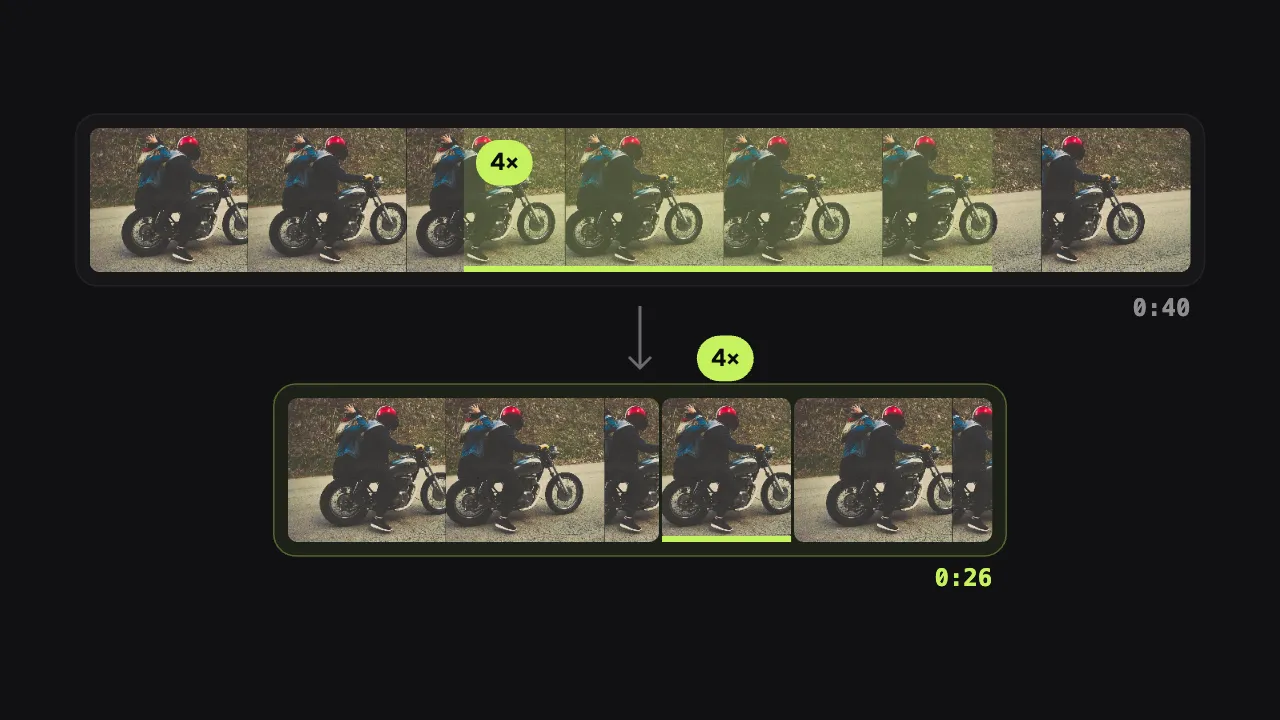
Play a long walk, a loading screen or a quiet stretch of road faster, and leave the rest at normal speed. Choose 1.25× to 8× for each part; voices stay natural up to double speed, and captions and music follow. It all runs in your browser, with nothing uploaded.
Drop your video here
Choose your videoMP4, MOV, WebM or MKV. It opens right here, on your device.
- Nothing uploaded
- No sign-up
- No watermark
How it works
Open your video
Drop an MP4, MOV, WebM or MKV, or a screen recording made in Shycut. It opens in your browser; nothing is sent anywhere.
Mark the slow part
In the Cut tab, go to where it starts and press “Speed up from here”, then go to where it ends and press “End here”. Pick 1.25×, 1.5×, 2×, 4× or 8×.
Check and export
Watch it in the preview at its new speed, change or remove any part, then save a new MP4.
What you get
- Only the part you choose
- Speed up one stretch, several at different speeds, or a whole clip from its settings. Everything else plays as filmed.
- Natural voices up to 2×
- Up to double speed, speech is shortened with its pitch kept, so nobody sounds like a cartoon. Faster parts play silently, like a time-lapse.
- See the time you save
- Each sped-up part is marked on the timeline with its speed, and the Cut tab shows how long it becomes.
- Captions and music follow
- Captions, chapters and the SRT file stay in time with the faster parts. Music on top plays on at its normal pace.
- Works with cuts
- Remove what isn’t needed, cut the silences, then speed up what is slow but worth seeing. They all add up in one export.
- Private and free
- The video is re-timed and encoded in your browser. No upload, no account, no watermark, and your original file is untouched.
When speeding up beats cutting
Walks, drives and rides
Keep the journey in the story, but get through a long road or a walk to the viewpoint in seconds.
Screen recordings
Installs, uploads and loading bars play at 4× or 8×, so viewers see that it happened without waiting for it.
Cooking, crafts and repairs
Show every step of the process, with the long stirring, sanding or drying sped up between the moments that matter.
Talks that drag a little
A slow explanation at 1.25× or 1.5× keeps its words and sounds natural, and the video gets shorter.
Why speed up instead of cutting, and how the sound is kept
Cutting a slow part out is not always the right answer. If you remove the drive to the beach, the video jumps from the car park to the sea and loses its sense of place. If you remove the progress bar from a tutorial, viewers wonder what they missed. Speeding the part up keeps it in the story but takes away the wait: ten minutes of road become a minute and a quarter at 8×, a two-minute install becomes thirty seconds at 4×. Most apps only speed up a whole video; Shycut lets you speed up just the stretch that needs it.
Marking a part works like removing one. Go to where the slow stretch starts, by playing or dragging on the timeline, and press “Speed up from here”. Then go to where it should end and press “End here”. The part shows on the timeline with its speed, and in the Cut tab you can change it to 1.25×, 1.5×, 2×, 4× or 8× or set it back to normal. To speed up a whole clip, choose it and set its speed in its settings. Parts can sit next to each other at different speeds, and they work alongside cuts and silence removal.
Sound is the tricky part. Played faster, a recording also gets higher, which is why sped-up videos so often sound like chipmunks. Up to 2×, Shycut shortens the speech the way a podcast player does: small pieces of sound are overlapped and re-joined so the voice keeps its pitch and stays easy to follow. Above 2× words become too fast to understand, so those parts play silently, like a time-lapse. Music you put on top is not affected at all: it plays at its own pace over the whole video, which hides the silence nicely.
Everything that is timed to the video follows the new speed. Captions written on your device stay under the right words in the faster parts, chapters move to their new times, and the SRT file you download matches the finished video. The preview plays every part at its chosen speed, so what you watch is what you export. The video is decoded, re-timed and encoded in your browser into a new H.264 MP4; it is never uploaded, and the original file stays as it was.
Tips for speeding up well
- Use 1.25× or 1.5× for slow speech, and 4× or 8× for things people only need to see happen.
- Leave a second at normal speed before and after a fast part, so the change of pace reads as intended.
- Above 2× the part is silent: add music over the video so it doesn’t feel empty.
- Cut what isn’t worth seeing at all, then speed up what is slow but still part of the story.
- Check the timing of captions in a fast part in the preview before you export.
Private by construction
- Runs on your device
- Your browser decodes, analyses and encodes the video. There is no server to send it to.
- Nothing is uploaded
- The counter in the header measures every byte this page sends. It stays at zero.
- Location data wiped
- Phones hide GPS positions inside videos. The exported file never carries them.
Questions
Can I speed up just one part of a video?
Yes. Mark where it starts with “Speed up from here” and where it ends with “End here”, then pick the speed. Mark as many parts as you like, each at its own speed.
How fast can it go?
Up to 8×. The speeds are 1.25×, 1.5×, 2×, 4× and 8×; a part can also be set back to normal speed at any time.
Will voices sound high-pitched?
No. Up to 2×, speech keeps its natural pitch. Parts faster than 2× are silent, because words at that speed can’t be followed anyway.
Can I slow a video down?
Not yet. Shycut speeds parts up; slow motion is not available at the moment.
Do captions and music still fit?
Yes. Captions, chapters and the SRT file follow the new timing. Music you added on top keeps its normal pace over the whole video.
Is the video uploaded?
No. It is processed in your browser on your own device. There is no account, no watermark, and your original file is never changed.
Your video stays with you.
Open Shycut, drop the video in and export. Free, with no account, and your video never leaves your device.
Choose your videoMore free tools
- Blur faces in video
- Pixelate a face
- Blur a moving face
- Blur children’s faces
- Blur license plates
- Dashcam video editor
- Remove location data
- Video metadata viewer
- Check a video’s location
- Remove silences
- Add captions to video
- SRT subtitle generator
- Resize for Reels & TikTok
- Merge videos
- Merge portrait and landscape
- Add music to video
- Screen recorder
- Motovlog editor
- Merge GoPro videos
- GoPro speed overlay
- Remove wind noise