Make a video vertical for Reels, TikTok and Shorts
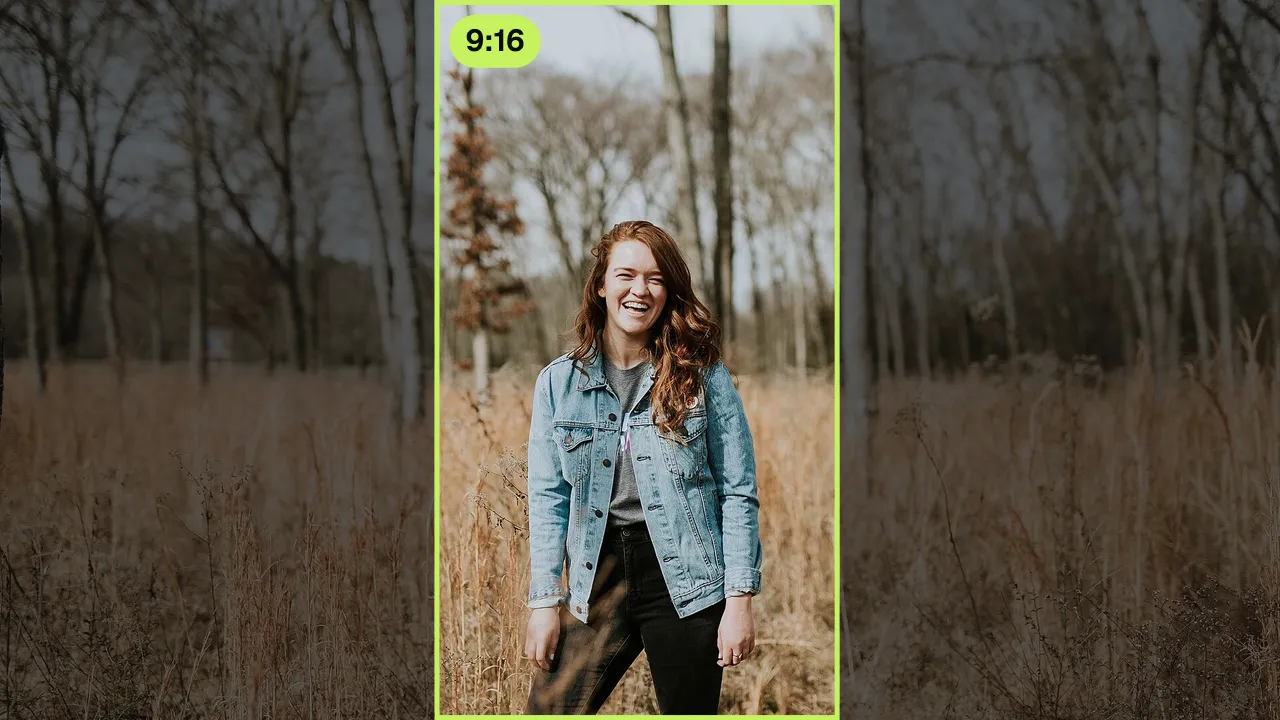
Turn a landscape video into a 9:16 vertical one, or a phone video into a 16:9 YouTube video. Pick a format, then let the frame follow a face, place it by hand, or keep the whole picture over a blurred copy of itself. Nothing is uploaded.
Drop your video here
Choose your videoMP4, MOV, WebM or MKV. It opens right here, on your device.
- Nothing uploaded
- No sign-up
- No watermark
How it works
Drop your video
Landscape, vertical or square, in MP4, MOV, WebM or MKV. It opens in your browser and stays on your device.
Pick the format
9:16 for Reels, TikTok and Shorts, 4:5 or 1:1 for feed posts, 16:9 for YouTube.
Frame it and export
Let the frame follow a face, drag it by hand, or fill the edges with a blurred background, then save an MP4.
What you get
- Every common aspect ratio
- 9:16, 4:5, 1:1 and 16:9, or keep the original shape and only change the size.
- Follows a face
- With “Follow face” the frame moves smoothly with the main person, so nobody walks out of a vertical video.
- Your own framing
- With “Manual”, drag the frame in the preview to choose exactly what stays in the picture.
- Blurred background fill
- Keep the whole picture: the empty edges fill with a soft, blurred copy of the video, the look many platforms use.
- One pass for everything
- Captions, silence cuts, face blur and balanced sound come out in the same export as the new shape.
- Recipes and batches
- “A vertical clip” on the home page sets 9:16 and face following, and cuts pauses, writes captions and hides faces and plates as the video opens. Save your own, or process several videos one by one.
When a video needs a different shape
A landscape clip for Reels or TikTok
You filmed sideways and the platform wants vertical. Crop to 9:16 and let the frame follow the person talking.
A phone video for YouTube
A vertical clip looks lost in a wide player. Use 16:9 with a blurred background so nothing is cut off.
One edit, several platforms
Export the same video as 9:16 for Shorts, then change the settings and export 4:5 for an Instagram post and 16:9 for YouTube.
Screen recordings for vertical feeds
Recorded your screen and camera in Shycut? A split frame puts you on top and the whole screen below, so text stays readable on a phone.
Crop or blurred background: how to choose, and what happens to quality
Every platform has a favourite shape. Reels, TikTok and Shorts fill a phone screen in 9:16. An Instagram feed post works best at 4:5 or square, and YouTube is 16:9. Post a video in the wrong shape and you get black bars, or the app crops it for you and cuts off the person you wanted to show. Changing the aspect ratio yourself means you decide what stays in the picture before the platform does.
There are two ways to change the shape. “Crop” cuts a frame out of the video: going from landscape to 9:16 keeps a vertical slice about a third of the width, which suits one person or one subject. “Blurred background” keeps the whole picture and fills the empty space with a soft, enlarged copy of the video. It is the better choice for wide scenes, groups, and vertical phone videos on their way to YouTube.
In crop mode, framing decides the result. With “Manual” you drag the frame in the preview to the spot that counts. With “Follow face” the frame moves smoothly with the main person, so a speaker who steps to one side doesn’t walk out of the picture. Faces you keep visible come first. Following needs the faces in the video found first: “Find faces” appears right there, and the search runs on your device, like everything else.
A crop can only keep the pixels that are there. Cut a 9:16 slice out of a 1080p landscape video and the result is about 608 × 1080, not 1080 × 1920, because Shycut doesn’t stretch the picture to invent detail. The panel shows the output size before you export. For a full 1080 × 1920 file, start from a 4K recording or use the blurred background. Either way, the video is encoded once, at the quality you choose.
Tips for a vertical video that works
- Film with the final shape in mind: leave room around the person if you plan to crop to 9:16 later.
- Use “Follow face” for one speaker who moves; switch to “Manual” for products, hands or anything without a face.
- If two people talk side by side, a 9:16 crop can only hold one of them. The blurred background keeps both.
- Platform buttons sit over the bottom of a vertical video. Put burned-in captions in the “Middle”, or drag them a little higher.
- Check the output size in the format panel. If a crop comes out small, try the blurred background or a higher-resolution source.
Private by construction
- Runs on your device
- Your browser decodes, analyses and encodes the video. There is no server to send it to.
- Nothing is uploaded
- The counter in the header measures every byte this page sends. It stays at zero.
- Location data wiped
- Phones hide GPS positions inside videos. The exported file never carries them.
Questions
What size is a Reels or TikTok video?
Reels, TikTok and Shorts are vertical 9:16, usually 1080 × 1920 pixels. Choose 9:16 in Shycut and the video is cropped or filled to that shape. The panel shows the exact output size before you export.
Will people be cut out of the frame?
Not if you choose “Follow face”: the frame moves smoothly with the main person. If several people matter, use “Blurred background” instead, which keeps the whole picture and fills the edges.
Can I turn a vertical phone video into a YouTube video?
Yes. Choose 16:9 with the blurred background, and the sides fill with a soft copy of the video, so nothing is cropped away. The “A YouTube video” recipe on the home page does exactly this.
Is the quality reduced?
The video is encoded once into an H.264 MP4 at the quality you pick: “Small file”, “Balanced” or “High”. Nothing passes through a server’s compression on the way, and a crop is never stretched beyond the pixels it has.
Is my video uploaded to resize it?
No. Cropping, framing and encoding all happen in your browser on your own device. There is no upload, no sign-up and no watermark on the exported file.
Can I resize several videos at once?
Yes. Drop several files together and choose to process the videos one by one: each gets the same recipe, such as “A vertical clip”. Save your own recipe to reuse the same format and settings next time.
Your video stays with you.
Open Shycut, drop the video in and export. Free, with no account, and your video never leaves your device.
Choose your videoMore free tools
- Blur faces in video
- Pixelate a face
- Blur a moving face
- Blur children’s faces
- Blur license plates
- Dashcam video editor
- Remove location data
- Video metadata viewer
- Check a video’s location
- Remove silences
- Add captions to video
- SRT subtitle generator
- Merge videos
- Merge portrait and landscape
- Add music to video
- Speed up video
- Screen recorder
- Motovlog editor
- Merge GoPro videos
- GoPro speed overlay
- Remove wind noise