Remove silence and dead air from your video, automatically
Tutorials, talking-head videos and vlogs get tighter as soon as they open: pauses and held hesitation sounds are found in the audio and cut, and you decide how tight. Every cut can be heard and brought back, and everything runs on your own device.
Drop your video here
Choose your videoMP4, MOV, WebM or MKV. It opens right here, on your device.
- Nothing uploaded
- No sign-up
- No watermark
How it works
Drop your video
Any talking video in MP4, MOV, WebM or MKV, or a screen recording made in Shycut. It opens in your browser; nothing is sent anywhere.
Pauses are cut
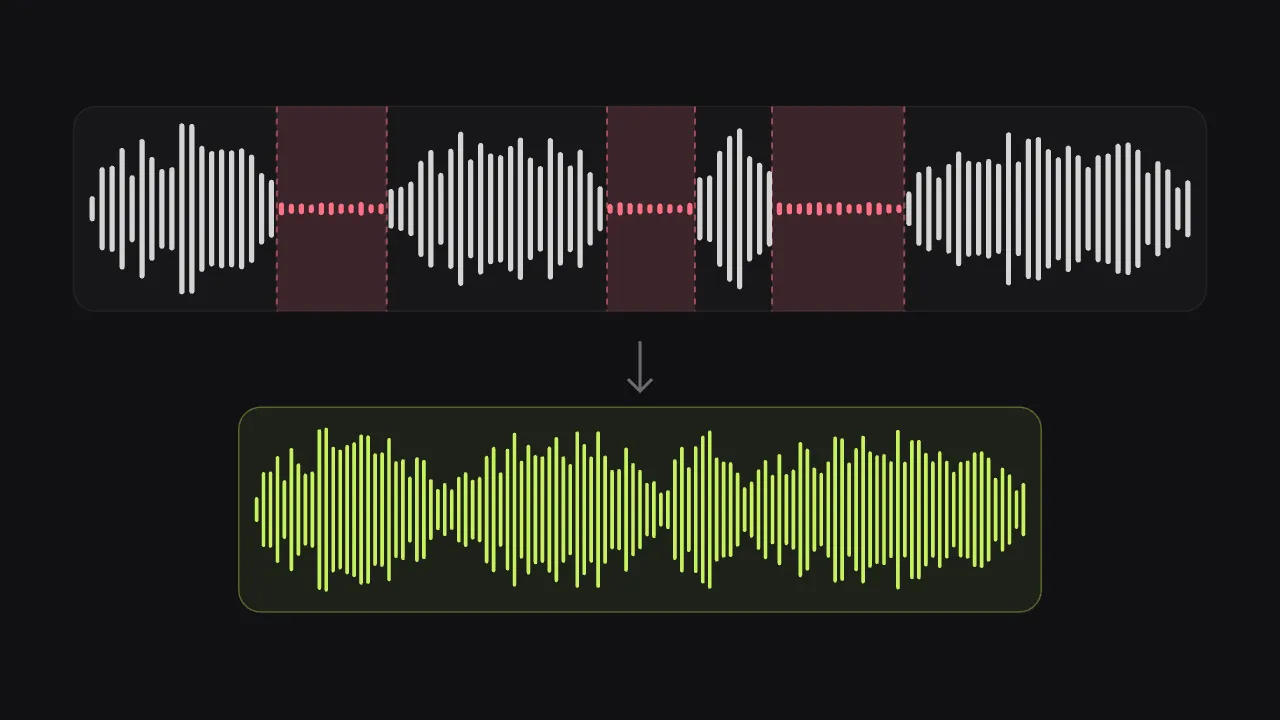
The audio is analysed on your device as the video opens, and pauses, dead air and held sounds like “um” are cut. Either switch turns its part off.
Fine-tune and export
Make the cuts gentler or tighter, bring back any part, cut more by hand, then save a new MP4.
What you get
- Adapts to your recording
- What counts as silence is measured from the video’s own sound, so a noisy room and a quiet studio both cut well.
- Hesitations, in any language
- Held sounds like “um”, “uh” and “eee” are recognised from the sound itself, not from words.
- Nothing is lost for good
- Every cut is listed. Listen to it in the original and bring it back with one tap.
- Cut by hand too
- Take out any stretch with “Remove part” and “Remove up to here” (shortcut X), or delete its words in the “Text” tab.
- Clean, even sound
- Loudness is balanced to −14 LUFS, the level social platforms play at, and wind or hum can be reduced in the same export.
- Captions that follow the cuts
- Add captions written on your device; they stay in time with the shorter video.
When cutting pauses saves the video
Tutorials and screen recordings
You stop to click, read or think while you record. Those gaps feel long to a viewer; cutting them keeps the lesson moving.
Talking-head videos and vlogs
Jump cuts between sentences give a straight-to-camera video its pace, without an hour of trimming by hand.
Lectures and online courses
Long recorded classes lose minutes to pauses between slides. Remove the dead air and learners get the same content in less time.
Interviews and video podcasts
Trim the silence while someone thinks of an answer, and keep the natural back and forth of the conversation.
Why cut pauses, and how Shycut finds them
A pause that feels natural in a conversation feels long on a screen. While you think of the next sentence, a viewer sees a still face and reaches for the scroll bar. That is why so many talking videos use jump cuts: the pauses between sentences are taken out and the speech runs on. Doing it by hand means scrubbing through the timeline, finding every gap and cutting it twice, once at each end. Removing silence automatically does that work for you.
Shycut first listens to your recording as a whole. It measures the background level, the sound of the room when nobody speaks, and compares it with the level of your voice. A stretch counts as silence only when it sits clearly closer to the background than to the speech. So a recording with a humming fan or traffic outside still cuts in the right places, and a quiet studio recording does not lose softly spoken words. “Gentle”, “Balanced” and “Tight” set how short a pause may be before it is cut.
Each cut keeps a short margin around the speech, so words do not start or end abruptly. With “um” and “uh” cutting switched on, Shycut also finds the sounds you hold while thinking. It recognises them from the sound itself, a steady, held pitch, rather than from words, so it works in any language. Filler words such as “like” or “you know” are never cut on their own, because they sometimes carry meaning. Once the speech is written down in the “Text” tab, they are pointed out as suggestions, and “Cut all” takes out a word everywhere it is said.
Nothing is final: every cut appears in a list, where you can choose “Listen in the original” and “Bring back” anything that should stay, like a pause before a punchline. For a false start or a fluffed take, use “Remove part” and “Remove up to here”, press X, or select its words in the “Text” tab and press Delete. The audio is analysed in your browser, the video is never uploaded, and your original file stays exactly as it was; the result is a new MP4.
Tips for natural-sounding cuts
- Start with “Balanced”. Switch to “Gentle” if the speech feels rushed, or to “Tight” for fast-paced short clips.
- Listen to a few cuts in the original before you export, especially at the ends of sentences.
- A pause that lands a point or a joke is worth keeping: bring it back with one tap.
- Silence cutting cannot tell a mistake from a sentence. Remove false starts and retakes by hand with “Remove part”, or delete them in the “Text” tab.
- Keep the microphone close when you record: the clearer the gap between voice and background, the cleaner the cuts.
Private by construction
- Runs on your device
- Your browser decodes, analyses and encodes the video. There is no server to send it to.
- Nothing is uploaded
- The counter in the header measures every byte this page sends. It stays at zero.
- Location data wiped
- Phones hide GPS positions inside videos. The exported file never carries them.
Questions
How does it decide what is silence?
It measures the background level of your own recording and treats stretches clearly quieter than speech as pauses. The “Gentle”, “Balanced” and “Tight” settings decide how short a pause may be before it is cut.
Will it cut off my words?
Cuts keep a short margin around speech, and you can make them gentler. Every cut can be listened to in the original and brought back before you export.
Does it remove filler words like “like” or “you know”?
Not on their own, because they sometimes carry meaning. Write the speech down in the “Text” tab and words like “like”, “you know” or “basically” are pointed out; “Cut all” removes a word everywhere, and any cut can be brought back. Held sounds such as “um” and “uh” are cut from the sound itself.
Is my audio sent to a server?
No. The audio is analysed in your browser and the video never leaves your device. There is no account to create, no watermark on the result, and your original file is never changed.
Can I cut a part that is not silent?
Yes. Go to where the part starts and press “Remove part”, then go to where it should end and press “Remove up to here”. The shortcut is X. Cuts made by hand can be brought back like any other.
Does it work on a phone and with long videos?
Yes, in a current browser on a phone or a computer. Videos up to about an hour work well; long ones are fastest on a computer, and a phone simply needs more time.
Your video stays with you.
Open Shycut, drop the video in and export. Free, with no account, and your video never leaves your device.
Choose your videoMore free tools
- Blur faces in video
- Pixelate a face
- Blur a moving face
- Blur children’s faces
- Blur license plates
- Dashcam video editor
- Remove location data
- Video metadata viewer
- Check a video’s location
- Add captions to video
- SRT subtitle generator
- Resize for Reels & TikTok
- Merge videos
- Merge portrait and landscape
- Add music to video
- Speed up video
- Screen recorder
- Motovlog editor
- Merge GoPro videos
- GoPro speed overlay
- Remove wind noise