Merge videos into one, right in your browser
Put clips from your phone, camera or screen recorder end to end and save them as a single MP4. Reorder them, trim the parts you don’t need and mix vertical with horizontal footage, without sending a single file anywhere.
Drop your video here
Choose your videoMP4, MOV, WebM or MKV. It opens right here, on your device.
- Nothing uploaded
- No sign-up
- No watermark
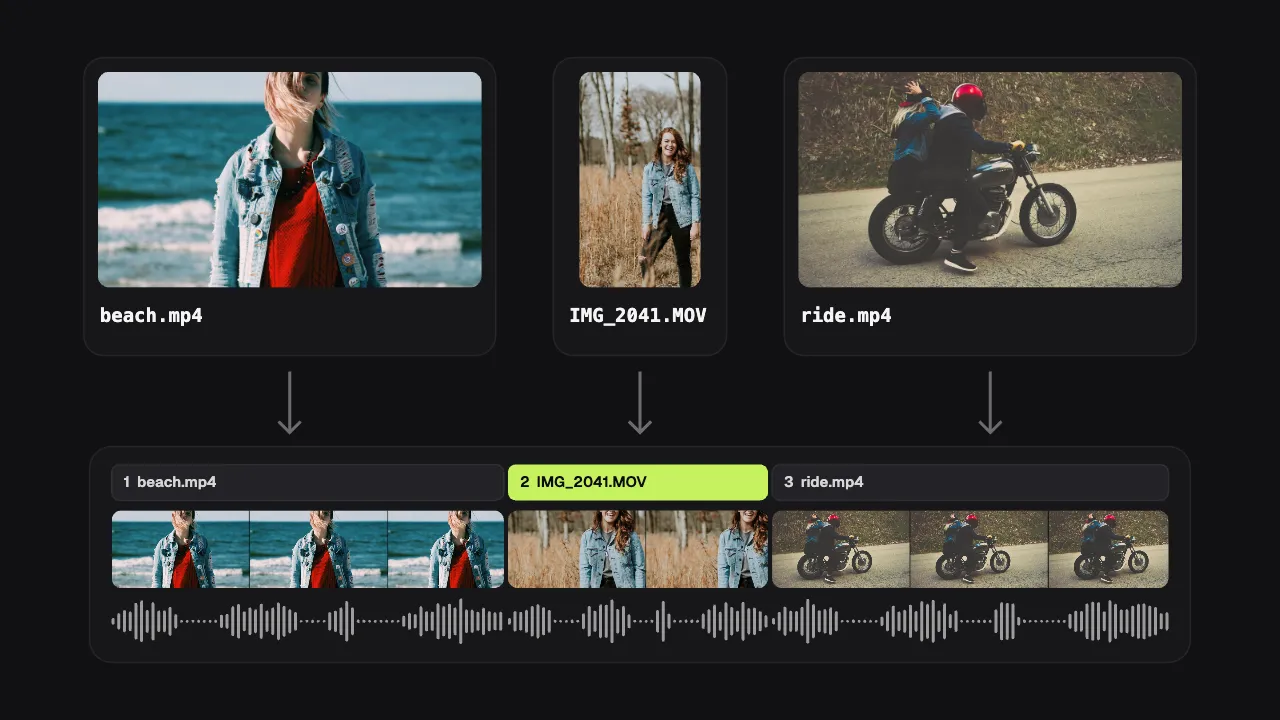
How it works
Choose your videos
Pick or drop several MP4, MOV, WebM or MKV files at once. The first one opens, and the others wait in the media list beside it.
Put them in order
Tap “Add all to the end”, or drag each video onto the timeline where it should go. Drag clips to reorder them, split one with S or take out what you don’t need.
Save one MP4
Choose the shape and quality, and export. Your clips become a single H.264 MP4 with one soundtrack.
What you get
- Any shape, one video
- Join a vertical phone clip with horizontal camera footage. Each clip either shows whole or fills the frame, and the video can be 9:16, 1:1, 4:5, 16:9 or the original shape.
- Reorder by dragging
- Clips sit in a strip above the timeline. Drag one to a new place; a lime line shows where it will land.
- Split and trim
- “Split” cuts a clip in two at the playhead, “Remove part” takes a stretch out of the middle, and the handles trim the start and end of the video.
- Edits follow their clip
- Cuts, captions and pictures on top move with the clip they belong to when you change the order.
- Privacy for every clip
- One search finds and hides faces and number plates in every clip of the joined video, followed as they move.
- Saved as you go
- The edit is kept on your device while you work. Close the tab and pick up where you left off from the home page.
When joining clips is the whole job
Trips and holidays
A dozen short phone clips from one day become one video you can actually send to the family group.
Lessons recorded in parts
A tutorial filmed in several takes, or a screen recording split by breaks, plays as one lesson without the gaps.
One event, several phones
A birthday or a match filmed by different people, vertical and horizontal, joined in the order it happened.
Reels from several takes
Keep the best take of each line, drop the rest, and post one vertical clip with captions.
How to merge videos without an upload, and what happens to them
Most online video mergers upload every clip to a server, join them there and send the result back. That is slow on mobile data, it puts copies of your footage on someone else’s computer, and free plans often add a watermark or cap the length. Shycut works the other way round: the browser on your phone or computer reads the clips, joins them and writes the new MP4 itself. The files never leave your device, so there is nothing to wait for on the way up and nothing left behind on a server.
When you pick several videos at once, they are opened in the order of their file names, so numbering them first (01, 02, 03) saves a step. The first one opens in the editor and the rest wait in the media list. “Add all to the end” joins them in that order; dragging a video from the list onto the timeline puts it exactly where you drop it. Every clip then shows as a chip above the filmstrip, and dragging a chip moves the clip. Splitting a clip with S lets you move its halves apart or take one out.
Clips rarely match. A phone films vertically at one frame rate, an action camera horizontally at another, and a screen recording at its own size. Shycut lays every clip into one frame: pick the shape of the finished video, and for each clip that differs, choose whether it shows whole with bars or fills the frame with its edges cropped. On export, picture and sound from every clip are re-encoded into one H.264 MP4 with AAC sound, so the result plays everywhere. A clip without sound simply stays silent in the joined video.
Joining is usually only the start. Cuts, silences, captions, pictures and music work on the joined video as a whole, and they stay attached to the clip they were made on when you reorder. If you are not finished, close the tab: the edit is saved on your device and waits under “Continue where you left off”, and after a restart Shycut asks only for the files it no longer has and matches them up itself. Where clips meet, the picture cuts straight or dips through black or white for 0.3, 0.6 or 1 second, while the sound runs on as it is. Mixing upright and wide clips? Merging portrait and landscape videos goes through choosing the shape clip by clip.
Tips for a clean join
- Number the files before you pick them (01, 02, 03): they open in name order and “Add all to the end” keeps it.
- Choose the video’s shape first. Mostly vertical clips? Pick 9:16 and let the horizontal ones fill the frame or show whole.
- Use “Split” and take out the shaky start or the accidental end of each clip, so the joins feel intentional.
- Add one piece of music over the whole video with “Lower while someone speaks”: it hides the change of sound between clips.
- Long joins export fastest on a computer. On a phone, keep the screen on until the video is saved.
Private by construction
- Runs on your device
- Your browser decodes, analyses and encodes the video. There is no server to send it to.
- Nothing is uploaded
- The counter in the header measures every byte this page sends. It stays at zero.
- Location data wiped
- Phones hide GPS positions inside videos. The exported file never carries them.
Questions
How many videos can I merge?
There is no limit set by a server, because there is no server doing the work. Your device’s memory is the limit; a joined video of up to about an hour works well, and long ones are fastest on a computer.
Can I merge vertical and horizontal videos?
Yes. Pick the shape of the finished video, then choose for each clip whether it shows whole (with bars) or fills the frame (with its edges cropped).
Does merging reduce the quality?
The joined video is encoded once as a new H.264 MP4. Choose “High” quality and the “Original” resolution to stay closest to your clips. Your original files are never changed.
Are my videos uploaded, and is there a watermark?
No and no. Everything runs in your browser on your own device. There is no account to create, no watermark and no paid plan.
Can I add transitions between clips?
Yes, a simple one. Under “Between clips”, choose “Dip to black” or “Dip to white” and a length of 0.3, 0.6 or 1 second: it applies wherever two clips meet, and the sound carries on as it is. Music over the whole video smooths the change of sound too.
What about GoPro files that were split by the camera?
Chapter files of one GoPro recording are recognised by their names and joined into one video before you start, with their GPS data lined up.
Your video stays with you.
Open Shycut, drop the video in and export. Free, with no account, and your video never leaves your device.
Choose your videoMore free tools
- Blur faces in video
- Pixelate a face
- Blur a moving face
- Blur children’s faces
- Blur license plates
- Dashcam video editor
- Remove location data
- Video metadata viewer
- Check a video’s location
- Remove silences
- Add captions to video
- SRT subtitle generator
- Resize for Reels & TikTok
- Merge portrait and landscape
- Add music to video
- Speed up video
- Screen recorder
- Motovlog editor
- Merge GoPro videos
- GoPro speed overlay
- Remove wind noise