Merge portrait and landscape videos into one
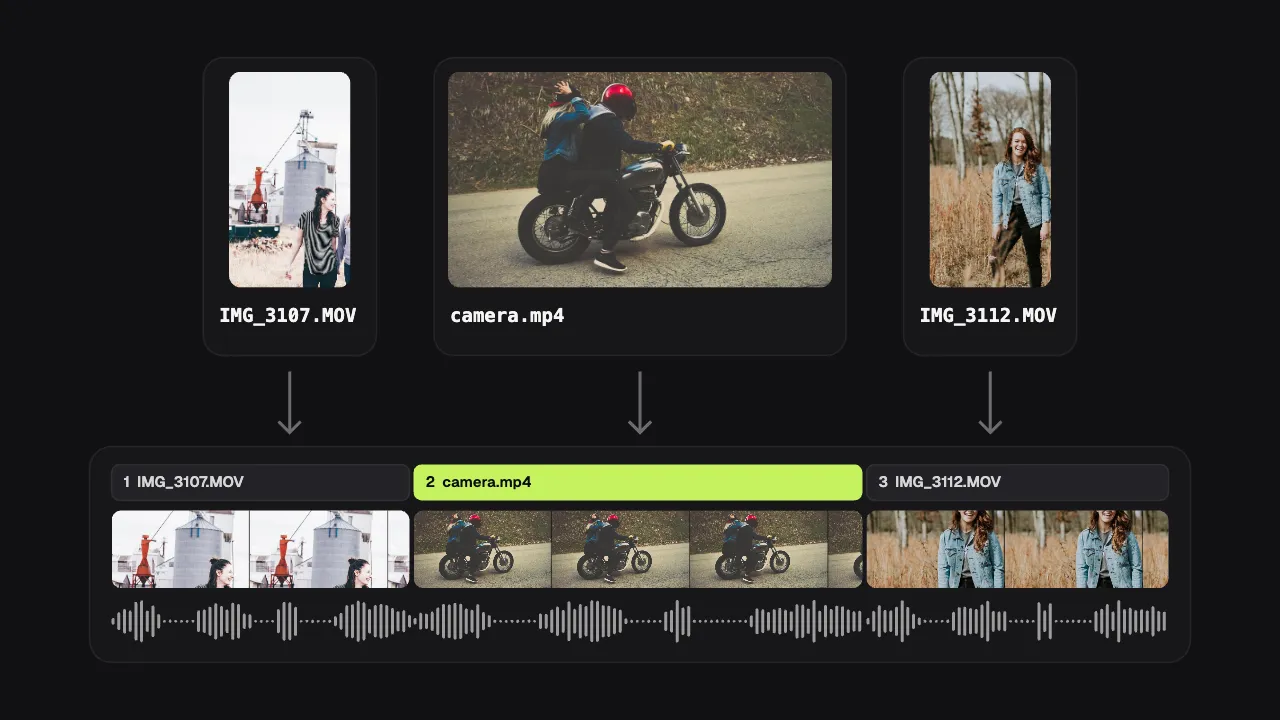
A phone clip filmed upright and camera footage filmed wide never match. Pick the shape of the finished video, decide for each clip whether it shows whole or fills the frame, and save one MP4, without sending a file anywhere.
Drop your video here
Choose your videoMP4, MOV, WebM or MKV. It opens right here, on your device.
- Nothing uploaded
- No sign-up
- No watermark
How it works
Drop all the clips
Pick or drop the vertical and horizontal videos together: MP4, MOV, WebM or MKV. The first one opens, the rest wait in the media list, and “Add all to the end” joins them in name order.
Choose the video’s shape
Pick 9:16 for Reels, TikTok and Shorts, 16:9 for YouTube, 1:1 or 4:5 for a feed post, or keep the original shape of the first clip.
Fit each clip, then save
Select a clip of another shape and choose “Show all of it” (bars beside or above it) or “Fill the frame” (its edges cropped). Then export one MP4.
What you get
- A fit for every clip
- The choice is made clip by clip, so a wide landscape can fill a vertical frame while the clip of someone talking shows whole.
- Five shapes to aim for
- 9:16, 1:1, 4:5, 16:9 or the original shape, chosen before you join the clips or changed afterwards.
- Never stretched
- A clip is shown whole or cropped to fill, never squeezed: faces and horizons keep their proportions.
- Mixed cameras welcome
- A phone, an action camera and a screen recording can differ in size and frame rate; everything is written again as one H.264 MP4 with AAC sound.
- A soft change of shape
- Where clips meet, cut straight or dip through black or white for 0.3, 0.6 or 1 second while the sound runs on.
- Nothing uploaded
- Your browser reads every clip and writes the new file itself. Footage from several phones never leaves the device it is on.
When the clips came out in different shapes
One event, several phones
A wedding, a match or a school show filmed by friends, some upright and some sideways, joined in the order it happened.
Trips filmed both ways
Upright clips from your phone and wide ones from a camera become one travel video, without turning anyone’s footage on its side.
Camera footage in a Reel
Horizontal footage from a camera or a drone fills a vertical Reel with its edges cropped, between clips you filmed upright.
A tutorial with a face
A wide screen recording followed by an upright clip of you explaining it, in one video with one soundtrack.
How to join vertical and horizontal clips without black bars everywhere
Every clip has a shape, and a finished video can have only one. A phone held upright films 9:16, a camera or a phone turned sideways films 16:9, and a screen recording has the shape of the screen. Put them in one video and something has to give: either a clip shows whole, with empty bars where it doesn’t reach the edges, or it is enlarged until it fills the frame, and the parts that stick out are cropped away. Neither is wrong; the right one depends on the clip and on where the video is going.
Start from the place you post to, because that decides the frame. Reels, TikTok and Shorts want 9:16: let wide clips fill the frame when the action is in the middle, and show them whole when the edges matter, such as a scoreboard or a group photo. YouTube and a TV want 16:9: an upright clip filling a wide frame loses most of its picture, so showing it whole is usually better. A square or 4:5 post sits in between and crops least from either side. Need the same video for both? Save it twice, in two shapes, from the same edit.
In Shycut, choose the shape of the video, then select a clip that differs: “Show all of it” keeps the whole picture with bars, and “Fill the frame” crops its edges. The choice is per clip, so each one can go its own way, and a clip is never stretched out of shape. When the clips are in order, everything is re-encoded into one H.264 MP4 with AAC sound, so the result plays on every phone and platform, whatever cameras the clips came from. A clip without sound simply stays silent in the joined video.
For clips that all share a shape, the plain merge videos page covers ordering, splitting and trimming in more detail; GoPro files split by the camera are joined back on the GoPro chapters page. And if the job is one horizontal video turned vertical, resize it for Reels and TikTok instead. All of them work the same way: your browser does the work, the files stay on your device, and there is no watermark or account.
Tips for mixing shapes
- Decide where the video will be posted before anything else: the shape follows from it, and so does which clips should fill the frame.
- Show a clip whole when its edges carry something: a scoreboard, a sign, the whole group in a photo.
- Fill the frame when the subject is in the middle and the sides are just background.
- Keep the same choice for clips that follow each other, so the video doesn’t jump between bars and full frame.
- A short dip through black where a vertical clip meets a horizontal one makes the change of shape feel intended.
Private by construction
- Runs on your device
- Your browser decodes, analyses and encodes the video. There is no server to send it to.
- Nothing is uploaded
- The counter in the header measures every byte this page sends. It stays at zero.
- Location data wiped
- Phones hide GPS positions inside videos. The exported file never carries them.
Questions
Can I merge a vertical and a horizontal video into one?
Yes. Pick the shape of the finished video, then choose for each clip of another shape whether it shows whole (with bars) or fills the frame (with its edges cropped).
Which shape should the finished video be?
The shape of the place you post to: 9:16 for Reels, TikTok and Shorts, 16:9 for YouTube, 1:1 or 4:5 for a feed post. When most clips share one shape, that shape usually works best.
Will a vertical clip be stretched to fit?
No. A clip is never stretched: it either shows whole with bars beside it, or it is enlarged to fill the frame and its edges are cropped.
Does joining clips of different shapes lower the quality?
The joined video is encoded once as a new MP4. Choose “High” quality to stay closest to your clips; a clip that fills a larger frame is enlarged, so it can look softer than the others. Your original files never change.
Can the clips have different frame rates?
Yes. Clips from phones, action cameras and screen recorders are written again into one video at one frame rate, with one soundtrack.
Are my videos uploaded, and is there a watermark?
No and no. The whole job runs in your browser on your own device. There is no account, no watermark and no paid plan.
Your video stays with you.
Open Shycut, drop the video in and export. Free, with no account, and your video never leaves your device.
Choose your videoMore free tools
- Blur faces in video
- Pixelate a face
- Blur a moving face
- Blur children’s faces
- Blur license plates
- Dashcam video editor
- Remove location data
- Video metadata viewer
- Check a video’s location
- Remove silences
- Add captions to video
- SRT subtitle generator
- Resize for Reels & TikTok
- Merge videos
- Add music to video
- Speed up video
- Screen recorder
- Motovlog editor
- Merge GoPro videos
- GoPro speed overlay
- Remove wind noise