Track and blur a face that moves, without keyframes
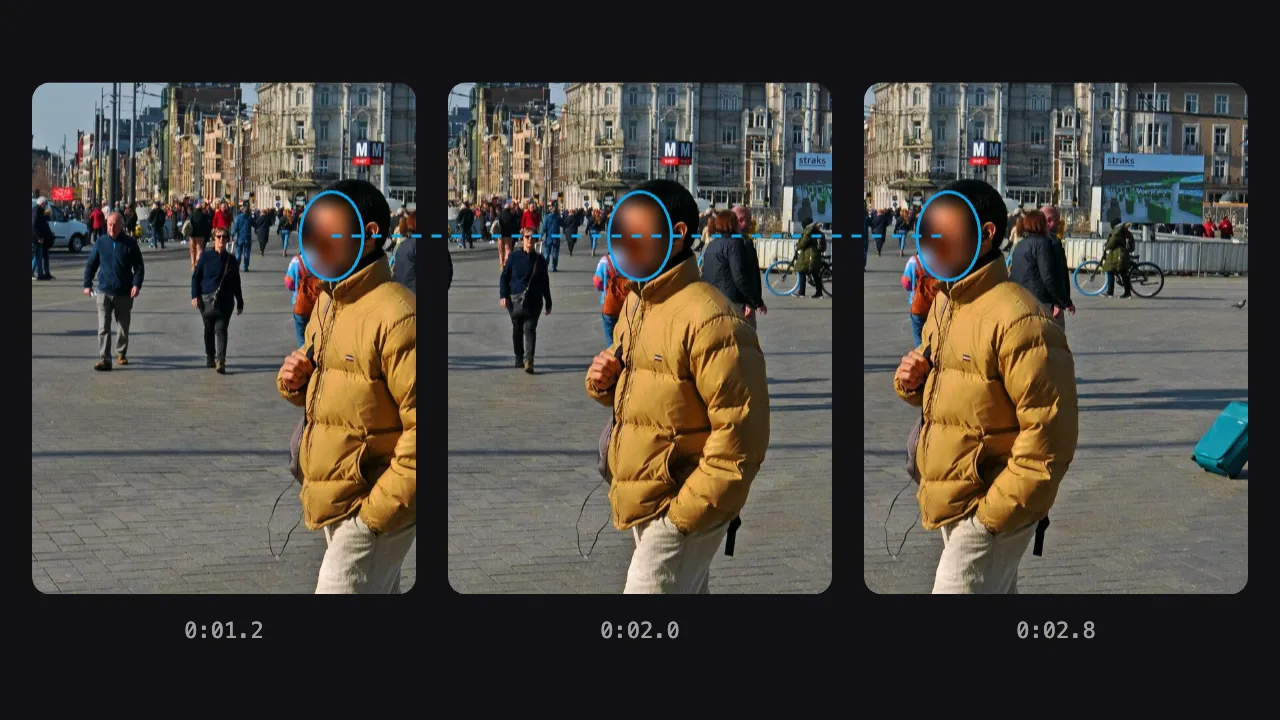
Drop a video and every face is found and followed from frame to frame, so the blur stays on a person as they walk, turn or cross the picture. There are no keyframes to set by hand, and the video never leaves your device.
Drop your video here
Choose your videoMP4, MOV, WebM or MKV. It opens right here, on your device.
- Nothing uploaded
- No sign-up
- No watermark
How it works
Drop your video
MP4, MOV, WebM or MKV, from a phone, a camera or a gimbal. It opens in your browser and stays on your device.
Faces are tracked for you
The search starts as the video opens. On-device AI finds each face and links it from one frame to the next, so the blur moves with the person. Everything it finds starts hidden.
Check the motion, then export
Play the fast parts, raise the margin if an edge peeks out, and save a new MP4 with the blur burned in.
What you get
- No keyframes
- You don’t place a box on every frame. Detection and tracking do that work; you review the result.
- Follows walks and turns
- The blur stays on a face as the person crosses the frame, turns away or walks towards the camera.
- Short gaps filled in
- If a face is missed for a moment, behind a passer-by or in a blurry frame, its position is filled in from the frames around it.
- Margin for fast motion
- The “Margin” slider grows the covered area around each face, so a quick head turn doesn’t let an ear or a chin slip out.
- Moving objects too
- Choose “Add area” and draw around a badge, a logo or a screen once. It is followed forwards and backwards through the video.
- Every appearance listed
- The found list shows each face with its time range. “Jump to this moment” takes you straight to the hardest part of the motion.
When a face won’t stay still
Walking vlogs and city tours
You film on the move and so does everyone around you. Strangers stay covered as they cross your shot, even while you walk.
Sports, games and playgrounds
Players and children run, turn and swap places. Each face is followed, and you reveal only the ones you may show.
Interviews on the move
A source who must stay anonymous walks and talks with you. Their face stays hidden through every step; the box style hides it completely.
Shops, venues and events
Staff and guests move through the background of a product video or an event clip. They stay hidden while your subject stays in view.
Why tracking beats keyframing, and what makes it hard
In a traditional editor, blurring a moving face means keyframing. You place a blur shape, move a few frames on, drag it to where the face went, and repeat. A ten-second walk filmed at 30 frames per second is 300 frames. Miss one and the face flashes into view for a split second, which is often enough to recognise someone. It is slow, tiring work, and it gets much worse when several people move through the shot at once.
Shycut does the frame-by-frame work for you. As the video opens, a face detection model runs in your browser and finds faces across the video. Each face is then linked to the face in the next frame that belongs to the same person, which builds a track. The blur follows that track, so it moves as the person moves. When a face is missed for a brief moment, its position is filled in from the frames before and after.
Tracking is not magic, and some motion is harder than others. A fast head turn changes a face from front view to profile in a few frames. Motion blur smears the features a detector looks for. A passing bus or another person can cover a face completely. And when someone leaves the frame and comes back later, they may appear as a new item in the found list. That new item starts hidden too, so nobody slips through.
Two controls handle most of these cases. The “Margin” slider widens the covered area around every face, which gives fast movement room without exposing an edge. “Add area” covers what the face detector can’t, such as a face under a helmet or an object moving through the scene: draw around it once where it is clearly visible, and it is followed in both directions until it disappears. The blur is burned into a new MP4, and your original file never changes. Crowds and busy streets are covered under blurring faces in video, and children running across a stage or a pitch under blurring children’s faces.
Tips for fast-moving footage
- Play the fastest moments at full speed before you export: a quick turn is where an edge is most likely to show.
- Raise the “Margin” for sports, dancing or running. A slightly bigger blur is better than a visible ear or chin.
- If someone leaves and comes back, look for a second item in the found list and make sure it is still hidden.
- Draw an area at a moment when the object is sharp and fully in view; tracking holds on better from a clear start.
- If an area stops when its object leaves the picture, draw it again where the object comes back.
Private by construction
- Runs on your device
- Your browser decodes, analyses and encodes the video. There is no server to send it to.
- Nothing is uploaded
- The counter in the header measures every byte this page sends. It stays at zero.
- Location data wiped
- Phones hide GPS positions inside videos. The exported file never carries them.
Questions
Do I have to keyframe the blur by hand?
No. Faces are found and tracked automatically as the video opens, so the blur moves with each person. You check the result, reveal anyone who may be seen, and fix the rare miss with “Add area”.
What happens when a person leaves the frame and comes back?
Short disappearances are bridged. After a longer absence the person may come back as a new item in the found list. It starts hidden like everything else, so you only need to check it, not hide it again.
Can it follow a face that turns sideways or moves fast?
Usually, yes. Profile views, motion blur and very fast turns are the hardest cases for any detector. Try a “Thorough” scan, raise the “Margin”, and draw an area over any moment where the face still shows.
Can I blur something other than a face as it moves?
Yes. Choose “Add area” and draw around it: a logo, a name badge, a screen or a helmet. It is tracked forwards and backwards from where you drew it and hidden with the same style as the faces.
Can I keep one moving person visible and hide the rest?
Yes. Every face starts hidden. Tap the person who should stay visible in the found list, and everyone else stays covered as they move. If that person comes back later as a new item, tap that one too.
Is my video uploaded for tracking?
No. Detection, tracking and blurring all run in your browser on your own device. The face model is downloaded once (about 4 MB with its engine), and your video never leaves the device.
Your video stays with you.
Open Shycut, drop the video in and export. Free, with no account, and your video never leaves your device.
Choose your videoMore free tools
- Blur faces in video
- Pixelate a face
- Blur children’s faces
- Blur license plates
- Dashcam video editor
- Remove location data
- Video metadata viewer
- Check a video’s location
- Remove silences
- Add captions to video
- SRT subtitle generator
- Resize for Reels & TikTok
- Merge videos
- Merge portrait and landscape
- Add music to video
- Speed up video
- Screen recorder
- Motovlog editor
- Merge GoPro videos
- GoPro speed overlay
- Remove wind noise