See the metadata hidden in a video file
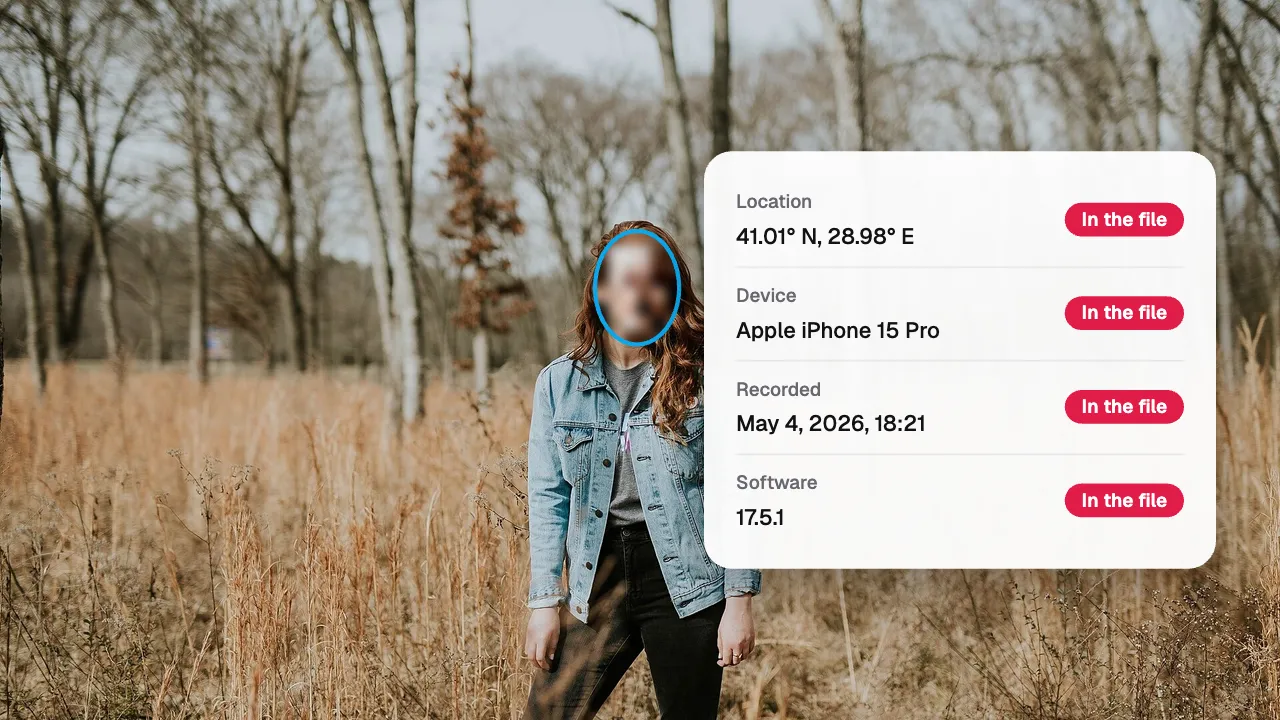
Drop a video and Shycut lists what the file says about itself: where it was filmed, on which phone or camera, when, and with what software. It reads the file on your device, sends nothing, and can save a copy without any of it.
Drop your video here
Choose your videoMP4, MOV, WebM or MKV. It opens right here, on your device.
- Nothing uploaded
- No sign-up
- No watermark
How it works
Drop a video
MP4, MOV, WebM or MKV, straight from your phone, your camera or a download. It opens in this browser tab.
Read what it says
Location, device, recording time and software appear in plain words, each marked as in the file or not, with every other readable tag listed below.
Keep it, or clean it
If you’d rather not share those details, save a clean copy: the picture and sound written again, with none of the metadata.
What you get
- Location, rounded
- A GPS position in the file is shown to about a kilometre, and never drawn on a map or sent to one.
- Device and system
- The phone or camera’s maker and model, and the system or app version that wrote the file.
- When it was recorded
- The recording time, in the time zone the file gives, so you see the clock where it was filmed.
- Camera GPS tracks
- GoPro clips carry a GPS log of the whole ride; the viewer counts its positions and shows where it starts.
- Everything else, listed
- Titles, comments and every other readable tag the file holds, under their own names, so nothing is left out.
- Read on your device
- Only the file’s details are read, never its picture, and nothing leaves your device: the counter in the header stays at zero.
When to look at a video’s metadata
Before you send a file
Videos shared as files, cloud links or e-mail attachments usually keep everything the phone wrote. Check what yours says before it goes.
A clip someone sent you
See which device made a video, when it says it was recorded, and whether it carries a place, without uploading it to any service.
Sorting your own footage
Find out which camera or phone a clip came from and when, when the file name says nothing useful.
Checking your settings
Record a short test after changing your camera’s location setting, then drop it here to see whether a position is still written.
What a video file carries, and where it hides it
A video file holds more than picture and sound. Containers like MP4 and MOV keep small notes in their header, written once when recording ends. Apple devices store them as named keys, such as the make, the model, the software version, the creation date and an ISO 6709 location string like +41.0082+028.9784/. Android phones and many cameras write a shorter location tag and put the recording time in the movie header itself, counted in seconds from 1904.
Matroska and WebM files carry tags of their own, and they often keep a LOCATION tag when a video was converted from a phone’s MP4 with a tool that copies tags across. GoPro cameras go further: next to picture and sound they record a separate telemetry track, GPMF, which logs the GPS position many times a second, so the file contains the whole route rather than one point.
Shycut reads all of these from the file’s header and its metadata tracks, in your browser. It looks at every key it knows for each fact, because devices disagree on names, and lists anything else readable under its own name. It doesn’t decode a single frame to do this, so it works even for videos your browser can’t play, and nothing is uploaded: the file is read from your disk and the result stays on screen.
What it shows is only what the file says. A missing location doesn’t prove where a video wasn’t filmed: apps often remove metadata when they send or post a video, and a picture can still give a place away through signs and landmarks. And the details can be wrong, since a camera with an unset clock writes a wrong date. When you want none of it to travel, save a clean copy: Shycut writes a new file from the picture and sound only. For the GPS spot alone, check where the video was filmed, or go straight to removing the location.
Tips for reading video metadata
- Look at the time zone next to the recording time: it tells you the clock where the video was filmed, which is not always yours.
- A software value like “Lavf” means the file was last written by a conversion tool, so the original device’s details may already be gone.
- For GoPro clips, the GPS track holds the whole route; one clean copy removes all of it, not just the first point.
- To stop new videos carrying a place at all, turn off location access for the camera app in your phone’s settings.
- Check the copy you are about to share, not only the original: drop the clean file here too and every row should say it isn’t there.
Private by construction
- Runs on your device
- Your browser decodes, analyses and encodes the video. There is no server to send it to.
- Nothing is uploaded
- The counter in the header measures every byte this page sends. It stays at zero.
- Location data wiped
- Phones hide GPS positions inside videos. The exported file never carries them.
Questions
How do I see a video’s metadata?
Drop the video on this page’s viewer. Shycut reads the file in your browser and lists its location, device, recording time, software and any other readable tags.
Is my video uploaded to read its metadata?
No. The file is read on your device and nothing is sent anywhere; the counter in the header shows how many bytes left the page, and it stays at zero.
Why is the location rounded?
To show you that the file gives a place away without putting the exact point on your screen. The file itself holds the precise position.
Which files can it read?
MP4, MOV, M4V, WebM and MKV videos, including iPhone and Android recordings and GoPro clips with GPS telemetry.
How do I remove what it finds?
Press “Save a clean copy”. The video is written again from its picture and sound, so the location, device and recording time stay behind.
Can it find where a video was filmed without metadata?
No. It reads what the file says and never guesses a place from the picture; if the file holds no location, it tells you so.
Your video stays with you.
Open Shycut, drop the video in and export. Free, with no account, and your video never leaves your device.
Choose your videoMore free tools
- Blur faces in video
- Pixelate a face
- Blur a moving face
- Blur children’s faces
- Blur license plates
- Dashcam video editor
- Remove location data
- Check a video’s location
- Remove silences
- Add captions to video
- SRT subtitle generator
- Resize for Reels & TikTok
- Merge videos
- Merge portrait and landscape
- Add music to video
- Speed up video
- Screen recorder
- Motovlog editor
- Merge GoPro videos
- GoPro speed overlay
- Remove wind noise