Blur faces in a video, without uploading it
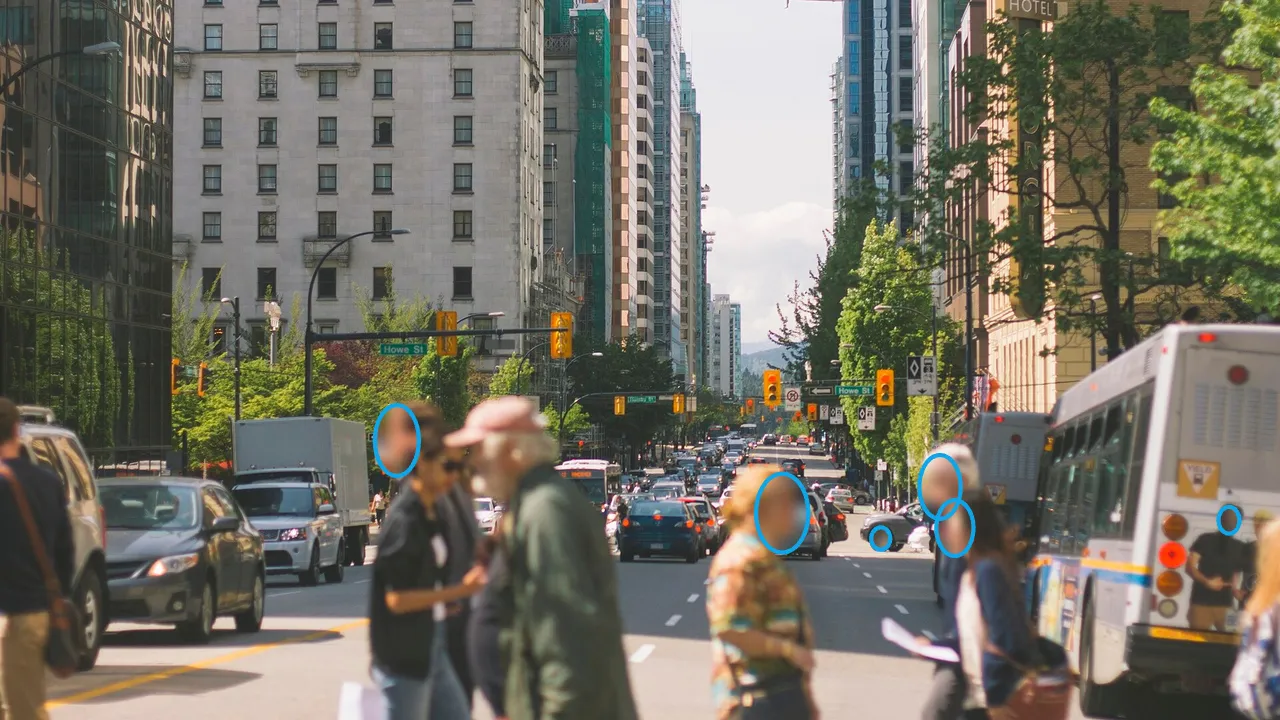
Drop a video and every face is found and followed as it moves, then hidden with blur, pixels, an emoji or a box. It all happens on your own device, so the people in your video stay private from the very first step.
Drop your video here
Choose your videoMP4, MOV, WebM or MKV. It opens right here, on your device.
- Nothing uploaded
- No sign-up
- No watermark
How it works
Drop your video
MP4, MOV, WebM or MKV from a phone, a camera or a screen recording. It opens in your browser; nothing is sent anywhere.
Faces are found and followed
The search starts as the video opens. On-device AI scans it and tracks each face; every face it finds is hidden until you say otherwise.
Keep who you want, then export
Tap a face to keep it visible, like your own. Pick blur, pixelate, emoji or a solid box and save a new MP4.
What you get
- Tracking that keeps up
- Faces stay covered as people turn, walk across the frame or come back later in the video.
- You decide who is seen
- Privacy first: everyone starts hidden. Reveal yourself, or anyone who agreed to be filmed, with one tap.
- Four ways to hide
- Soft blur, pixels, an emoji or a solid box, with a strength and margin you can set. The preview shows exactly what the export will contain.
- Draw around anything else
- A name badge, a house number, a screen: choose “Add area”, draw a box around it and it follows the motion too.
- Small faces in the distance
- Switch the scan to “Thorough” and it also looks for small faces far from the camera. It takes longer, so it is there when you need it.
- Location wiped as well
- The exported file carries no GPS position, phone model or original timestamps from the recording.
When you need to blur faces
Street and travel videos
Strangers walk through every city shot. Hide them before you post, so nobody ends up online without being asked.
Events, classes and workplaces
Share a talk, a training session or a team day while keeping colleagues and guests who didn’t agree out of view.
Reporting an incident
Send a clip to a landlord, a school or a platform with bystanders hidden, and keep only the people who matter visible.
Family and friends
Post the moment, not the people who prefer to stay offline. Tap the faces that may be seen and the rest stay hidden.
Why blur faces before you post, and how Shycut does it
A face is the easiest way to recognise someone. Once a video is public it can be copied, searched and matched against other pictures, long after you have forgotten it. Many people in the background never agreed to be filmed, and in many places publishing a recognisable person needs their consent. Hiding faces is the simplest way to share what happened without exposing who was there.
Most online face blur tools ask you to upload the video first. That means the very footage you want to protect sits on someone else’s server, at least for a while. Shycut works the other way round: the page loads a small face detection model into your browser, and your device reads the video, finds the faces and writes the new file. There is nothing to upload, so nothing can leak on the way.
As the video opens, Shycut scans the frames, finds each face and follows it from one frame to the next, so the blur moves with the person. Everything it finds starts hidden. That is a deliberate choice: forgetting to hide one passer-by is worse than having to reveal yourself with a tap. The list of found faces shows when each one appears, and you can jump to that moment to check it.
The blur is made by shrinking the area and scaling it back up, which throws the detail away rather than just softening it. For the strongest protection, choose the solid box. Either way, the result is drawn into the pixels of a new MP4, so it is not a layer anyone can switch off, and your original file stays exactly as it was. Filming children at school or on the pitch? See blurring children’s faces. Cars in the shot get the same care when you blur license plates, and the GPS spot the file carries goes when you remove the location from the video.
Tips for a clean result
- Watch the preview once from start to end before you export: no detector finds every face in every frame.
- Faces in profile, behind sunglasses or under a helmet are harder to find. Try a “Thorough” scan, or draw an area around them.
- Raise the margin if the edge of a face shows around the blur in fast movement.
- For people who must not be identified at all, use the box style rather than a light blur.
- Long videos are fastest on a computer; a phone works too, it just needs more time.
Private by construction
- Runs on your device
- Your browser decodes, analyses and encodes the video. There is no server to send it to.
- Nothing is uploaded
- The counter in the header measures every byte this page sends. It stays at zero.
- Location data wiped
- Phones hide GPS positions inside videos. The exported file never carries them.
Questions
Does Shycut upload my video to blur the faces?
No. Detection, tracking and blurring all run in your browser on your own device. Your browser downloads the face model once (about 4 MB, with its engine); your video never leaves your device.
Can I keep my own face visible?
Yes. Every face is hidden at first. Tap the faces that should stay visible, and check the preview before you export.
Can the blur be removed from the exported video?
The blur is drawn into the pixels of the new MP4, so it is not a layer anyone can switch off. For the strongest protection, choose the solid box. Your original file is never changed.
Does it work on iPhone and Android?
Yes, in a current Safari or Chrome. Face detection runs on the phone’s processor so the result is the same on every device; long videos are quicker on a computer.
Is there a length limit or a watermark?
No watermark, and no limit set by a server, because nothing is uploaded. Videos up to about an hour work well; the only real limit is your device’s memory and patience.
What if a face is missed?
Choose “Add area” and draw around it; the area is followed as it moves. A “Thorough” scan also helps with small or distant faces.
Your video stays with you.
Open Shycut, drop the video in and export. Free, with no account, and your video never leaves your device.
Choose your videoMore free tools
- Pixelate a face
- Blur a moving face
- Blur children’s faces
- Blur license plates
- Dashcam video editor
- Remove location data
- Video metadata viewer
- Check a video’s location
- Remove silences
- Add captions to video
- SRT subtitle generator
- Resize for Reels & TikTok
- Merge videos
- Merge portrait and landscape
- Add music to video
- Speed up video
- Screen recorder
- Motovlog editor
- Merge GoPro videos
- GoPro speed overlay
- Remove wind noise