Add captions to your video automatically, on your own device
Speech becomes captions in your browser, each word timed. Fix any line, pick a style, drag the captions where you want them, then burn them into the video or download an SRT file. The video is never uploaded.
Drop your video here
Choose your videoMP4, MOV, WebM or MKV. It opens right here, on your device.
- Nothing uploaded
- No sign-up
- No watermark
How it works
Drop your video
MP4, MOV, WebM or MKV. Vertical, square or landscape, from any camera or phone.
Captions are written
They start as the video opens: a Whisper speech model, downloaded once, writes them in your browser and detects the language. On mobile data it waits for your tap.
Style, place and export
Edit the text, choose a look, drag the captions anywhere on the frame, then export the video or an SRT file.
What you get
- Many languages
- English, Turkish, German, French, Spanish and many more. The language is detected, or you choose it.
- The spoken word lights up
- Every word carries its own time. The “Pop” style highlights each word as it is said, the way short videos do.
- Four styles
- “Pop”, “Classic”, “Boxed” and “Minimal”, with a text size you set, so captions suit a loud clip or a calm talk.
- Put them anywhere
- Top, middle, bottom, or drag them to any spot. They snap to the centre line, and the export matches the preview.
- Edit every line
- Tap a line to fix a misheard name or word, or remove a line; the captions on the video change with it.
- In time with your cuts
- Cut silences or parts by hand and the captions stay in sync with the shorter video.
When auto captions make the difference
Reels, TikTok and Shorts
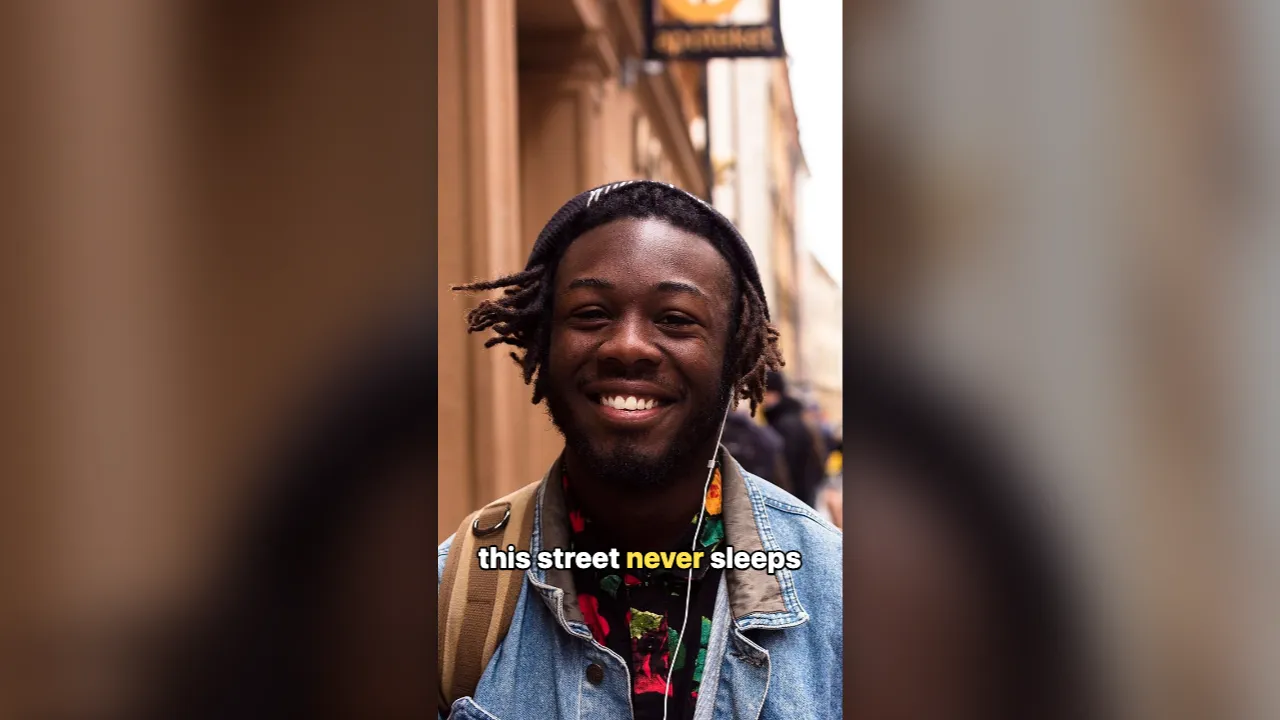
Much of social video is watched with the sound off. Burned-in captions carry the message when nobody hears it.
Street talk and noisy places
Traffic, crowds and wind make speech hard to follow. Captions let viewers read what the sound hides.
Tutorials and explainers
Steps and terms are easier to follow when they are written on the screen as you say them.
Viewers who need to read
People who are deaf or hard of hearing, and anyone watching in a second language, can follow along.
Why add captions to a video, and how Shycut writes them
People scroll through videos on the bus, in the office and late at night, often with the sound off. A talking video without captions is a moving face with no message. Captions keep the words in front of everyone: viewers in a noisy place, people who are deaf or hard of hearing, and those who follow a language better in writing. They also help a viewer decide in the first seconds whether the video is worth their time.
Many online subtitle tools ask you to upload the video so a server can transcribe it. Shycut runs Whisper, a speech recognition model, inside your browser instead. Your browser downloads it once, about 100 MB for “Fast” or about 300 MB for “Accurate”, and keeps it for next time. From then on, your device listens to the audio and writes the auto captions itself; the recording is never sent anywhere.
Whisper recognises about a hundred languages and Shycut detects the spoken one automatically. If it guesses wrong, pick the language from the list and choose “Create in this language”. The captions are written in the language that is spoken, or, with “In English”, translated into English as the model listens. Each word gets its own start and end time, which is what lets the “Pop” style light up the word being said.
When the captions are ready, read through the lines and tap any one to fix a misheard word. Choose a style and a text size, place the captions at the top, middle or bottom, or drag them anywhere. Then choose “Burn captions into the video” for social clips, or “Download SRT” to upload a subtitle file next to your video. If you cut silences, the captions follow the cuts.
Tips for captions people can read
- Pick “Accurate” unless you are in a hurry: it is recommended for most languages and downloads only once.
- Read the lines once before you export. Names, brands and numbers are the words a speech model gets wrong most often.
- On vertical videos, keep captions clear of the bottom edge, where apps put their own buttons and text.
- Use “Pop” for short, lively clips and “Classic” or “Minimal” for longer, calmer videos.
- If the language was detected wrong, redo it before you fix any lines: creating captions again replaces your edits.
Private by construction
- Runs on your device
- Your browser decodes, analyses and encodes the video. There is no server to send it to.
- Nothing is uploaded
- The counter in the header measures every byte this page sends. It stays at zero.
- Location data wiped
- Phones hide GPS positions inside videos. The exported file never carries them.
Questions
Which languages are supported?
Whisper understands about a hundred languages, including English, Turkish, German, French and Spanish. Shycut detects the spoken language itself, and you can pick another from the list and create the captions again.
Why is there a download first?
The speech model runs on your device instead of on a server, so your browser needs it once: about 100 MB for “Fast” or 300 MB for “Accurate”. It is kept in your browser, so the next video starts right away.
Can I fix mistakes in the captions?
Yes. Tap any line in the list to correct a misheard word, or remove a line you don’t want. The captions on the video change straight away, and the export uses your corrected text.
Should I burn the captions in or download an SRT?
Burn them in for Reels, TikTok and Shorts, where the text should always show. Download an SRT for YouTube or Vimeo, where viewers can switch subtitles on or off. You can do both from the same captions.
Can Shycut translate my captions?
Into English, yes: choose “In English” and the speech model translates as it listens, whatever language is spoken; lines follow the speech, and single-word timing is approximate. Into other languages, not yet: download the SRT and give it to a translator.
Do captions work on a phone?
Yes, in a current Chrome or Safari. They take longer than on a computer; if the phone’s graphics chip gives up halfway, Shycut carries on with the processor and keeps what was already written.
Your video stays with you.
Open Shycut, drop the video in and export. Free, with no account, and your video never leaves your device.
Choose your videoMore free tools
- Blur faces in video
- Pixelate a face
- Blur a moving face
- Blur children’s faces
- Blur license plates
- Dashcam video editor
- Remove location data
- Video metadata viewer
- Check a video’s location
- Remove silences
- SRT subtitle generator
- Resize for Reels & TikTok
- Merge videos
- Merge portrait and landscape
- Add music to video
- Speed up video
- Screen recorder
- Motovlog editor
- Merge GoPro videos
- GoPro speed overlay
- Remove wind noise