Edit audio online: trim, cut and clean up an MP3
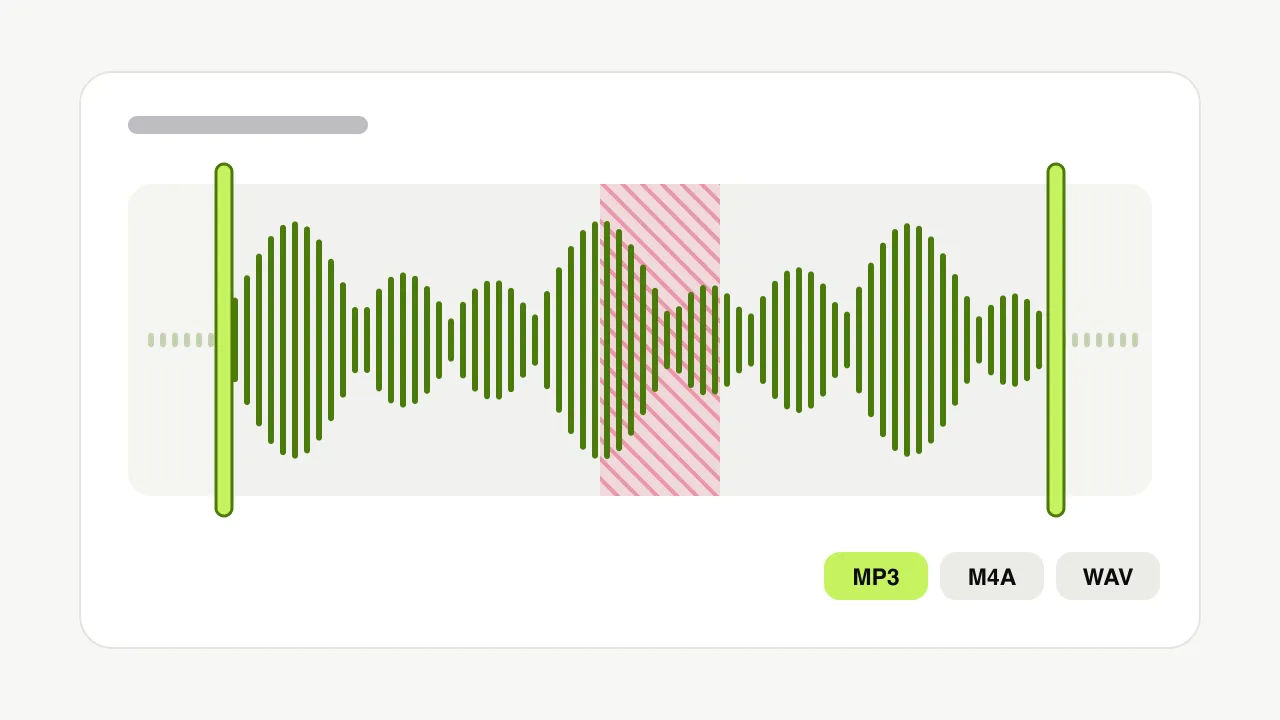
Drop a sound file and it opens ready to edit: set where it starts and ends, take parts out, cut the long pauses and “um”s, even out the level and reduce the noise. Save it again as MP3, M4A or WAV, in the quality you choose. It is free, with no account, and the file never leaves your device.
Drop your audio file here
Choose your audio fileMP3, M4A, WAV, FLAC or OGG. It opens right here, on your device.
- Nothing uploaded
- No sign-up
- Free
How it works
Drop the sound file
MP3, M4A, AAC, WAV, FLAC, OGG or Opus. It opens on the Cut tab, nothing changed.
Trim and cut
Set the start and end, mark parts to take out, or let pauses and “um”s go by themselves.
Save it
MP3, M4A or WAV, at 96, 160 or 256 kbit/s. It starts on the kind of file you dropped.
What you get
- Trim the start and end
- Drag the ends on the timeline or set them at the playhead, to the frame.
- Take parts out
- Mark a stretch and remove it; every cut is listed and can be brought back.
- Pauses and “um”s
- Dead air and hesitations cut gently by one switch, as strictly as you like.
- Even and clean
- Loudness evened out for apps or podcasts, and wind, hum and noise reduced.
- Edit by the words
- Write the speech down on your device and delete sentences in the text.
- Nothing uploaded
- Decoding, editing and saving all happen in your browser. No sign-up, no watermark.
What people edit
A voice note or recording
Cut the fumbling start and the goodbye at the end, then send a short, clean MP3.
A podcast or interview
Take out the off-topic part, trim the pauses and save the episode at a podcast level.
A song for a video
Keep the part you want and save it to put under a clip.
A lecture or meeting
Keep only what matters, then write it down as notes if you like.
Editing a sound file in the browser
Online audio editors usually upload your file to cut it on their servers. Shycut opens it in your browser: the sound is read and played on your device, every change is made there, and the new file is written there. Nothing is uploaded, which matters when the recording is a meeting, a patient, a client or simply your own voice. Under the hood a sound file opens as a plain dark square with the sound, because the editor works on videos; the sound itself is copied as it is, not changed.
The Cut tab is where it opens. Drag the start and end, or set them at the playhead; mark a stretch with “Remove part” to take it out; switch on “Cut silent parts” and the one for “um”s and “uh”s to trim the dead air and hesitations gently, with every cut listed so it can be brought back. Parts can also be sped up, from 1.25× to 8×, keeping the voice natural up to 2×. Undo and redo cover everything.
In the Audio tab the sound is evened out to the level apps play at (−14 LUFS), or to −16 for podcast apps, and noise reduction takes wind, hum and room noise down; to do only that, the background noise page opens with it on. The speech can be written down on your device, which turns the recording into text you can edit: delete a sentence and it is cut from the sound, then save the words too. See turning a recording into text.
Saving starts on the kind of file you dropped: an MP3 stays MP3, an M4A stays M4A, a WAV stays WAV, at 96, 160 or 256 kbit/s for the compressed ones. You can also save it as a video, a square with a moving wave and captions, for social; see the audiogram maker. Several sound files dropped at once open joined end to end, in name order; see merging audio files.
Tips for a clean edit
- Zoom into the timeline to cut on the exact word; the waveform shows where speech starts.
- Use “gentle” pause cutting for speech that should still breathe, “tight” for quick clips.
- Turn on noise reduction before judging a recording: hum hides how good it really is.
- Save as WAV if it goes into another editor next, MP3 to send or publish it.
- Play the whole result once before saving: a cut that sounds fine alone can clip a word.
Private by construction
- Runs on your device
- Your browser opens, edits and saves the sound. There is no server to send it to.
- Nothing is uploaded
- The counter in Shycut’s header measures every byte the app sends while you work. It stays at zero.
- Your file stays as it was
- The browser only reads the file you open. What you save is a new file; the original is never changed.
Questions
Is the audio editor free?
Yes, with no account, no watermark and no limit from us. The only limit is your device; an hour of sound is fine.
Which audio formats can I open?
MP3, M4A, AAC, WAV, FLAC, OGG and Opus, and the sound of any video. Saving gives MP3, M4A or WAV.
Can I trim an MP3 without losing quality?
Saving writes the file again, so choose High (256 kbit/s) for MP3, or WAV, which is uncompressed. A voice recording sounds the same either way.
Is my file uploaded?
No. It is opened, edited and saved in your browser, on your device. The counter in the app header shows the bytes the page sends, and it stays at zero.
Can I join several MP3 files into one?
Yes. Drop them together and they open joined end to end, in name order, ready to reorder and save as one file.
Does it work on a phone?
Yes, in a current phone browser. Pick the file from your files or recordings; the result is saved to your downloads.
Your audio stays with you.
Open Shycut, drop the audio file in and export. Free, with no account, and your audio never leaves your device.
Choose your audio fileMore free tools
- Blur faces in video
- Pixelate a face
- Blur a moving face
- Blur children’s faces
- Blur license plates
- Dashcam video editor
- Remove location data
- Video metadata viewer
- Check a video’s location
- Remove silences
- Video voice changer
- Bleep out words in a video
- Add captions to video
- SRT subtitle generator
- Audio to text
- Resize for Reels & TikTok
- Crop a video
- Remove text from video
- Zoom in on a video
- Merge videos
- Merge portrait and landscape
- Add music to video
- Add text above a video
- Speed up video
- Screen recorder
- Podcast recorder
- Online voice recorder
- Mic test
- Merge audio files
- Remove background noise
- Add a voice-over
- Audiogram maker
- Motovlog editor
- Merge GoPro videos
- GoPro speed overlay
- Remove wind noise