Merge audio files into one, right in your browser
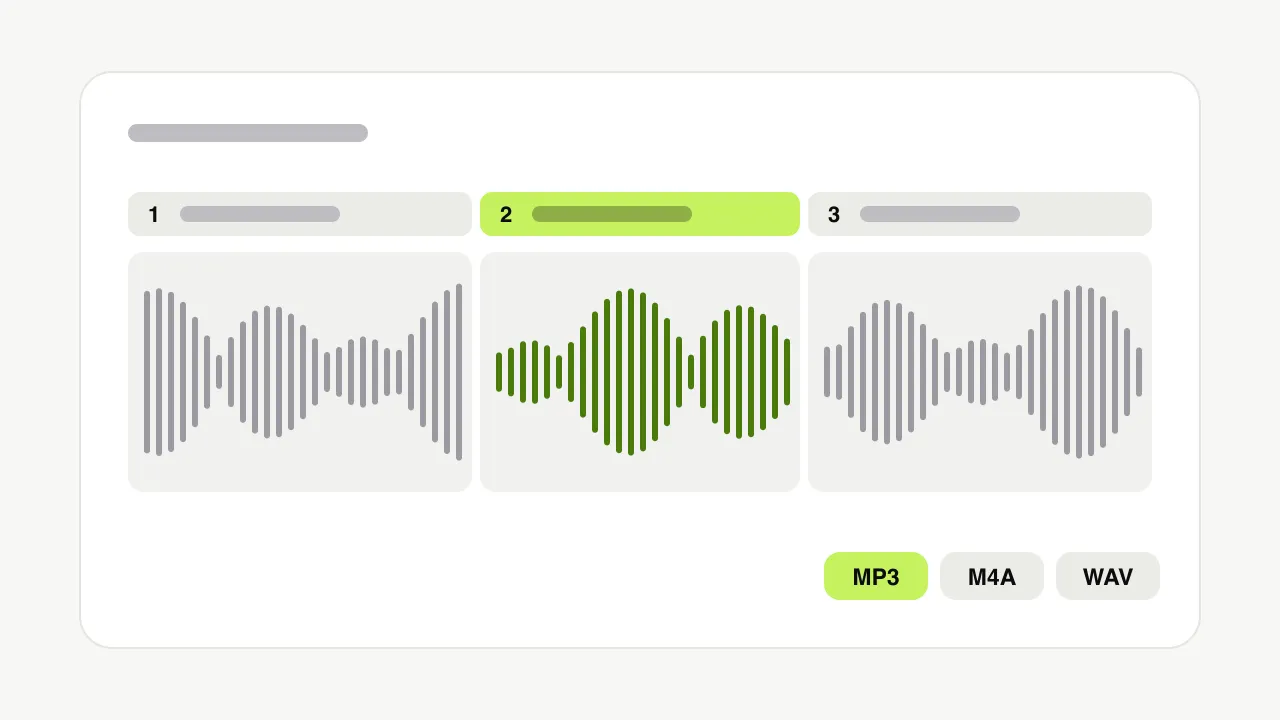
Pick or drop several sound files and they open already joined end to end, in the order of their names. Drag them into another order, cut out what you don’t need, even out the loudness, and save one MP3, M4A or WAV. It is free, with no sign-up, and none of your files leave your device.
Drop your audio files here
Choose your audio filesMP3, M4A, WAV, FLAC or OGG, as many as you like. They open right here, joined end to end in name order.
- Nothing uploaded
- No sign-up
- Free
How it works
Drop the files together
MP3, M4A, AAC, WAV, FLAC, OGG or Opus. They open joined, in name order.
Put them in order
Drag a clip to move it, split one with S, or take out what you don’t need.
Save one file
One MP3, M4A or WAV, at 96, 160 or 256 kbit/s, with the loudness evened out.
What you get
- Joined as they open
- Every file dropped goes end to end at once, numbered in the order of its name.
- Any order
- Drag the clips into the order you want, or move one earlier or later from its settings.
- Add more later
- Import another file and choose “Add to the end”; it joins like the others.
- Different formats together
- An MP3 after a WAV after an M4A: they become one file of the kind you choose.
- Even and clean
- Loudness evened across the parts, and noise reduced, as the file is saved.
- Nothing uploaded
- Joined and saved in your browser. No account, no watermark, no file limit from us.
What people join
Recordings in several parts
A lecture, a meeting or an interview that stopped and started again, as one file.
Podcast intro, episode, outro
Put the jingle before the talk and the sign-off after it, then save the episode.
Voice notes
A string of messages or memos joined into one recording to keep or send.
Audiobook chapters
Chapter files joined into one long listen, in order.
Joining sound files without uploading them
Online MP3 joiners upload every file, stitch them on a server and send one back, usually with a size limit. Shycut does it in your browser: the files are read on your device, laid end to end and written into one new file there. Nothing is uploaded, and there is no limit from us on how many files or how long they are; an hour or two in total is fine, and a computer is faster than a phone.
Dropping several files at once joins them straight away, in the order of their names, so numbering them first (01, 02, 03) saves a step. Each file becomes a clip on the timeline with its number; drag a clip to move it, select it and use Earlier or Later, split one at the playhead with S, or take it out. Undo and redo cover everything. To add another file later, import it and choose “Add to the end” on its tile, or drag it onto the timeline where it belongs.
Files of different kinds and qualities join without trouble: an M4A from a phone after a WAV from a recorder after an MP3 from a call. When you save, the loudness is evened out across the whole file (−14 LUFS for apps, −16 for podcasts) and noise reduction can clean the room out of every part. Saving gives MP3 at 96, 160 or 256 kbit/s, M4A, or WAV without compression; it starts on the kind of the first file.
Joining puts sounds one after another. To play a sound over another instead, music under a voice for example, import it and choose “Add at the playhead” to put it on top, lowered while someone speaks; see adding music. Where two parts meet the sound cuts straight from one to the next. To tidy each part, the audio editor trims and cuts pauses, and the background noise page cleans hum and wind.
Tips for a smooth join
- Number the files before you pick them (01, 02, 03): they join in name order.
- Trim the silence at the end of each part, so the next one doesn’t start after a gap.
- Turn on “Balance loudness” when the parts were recorded on different devices.
- Save as WAV if another editor comes next, MP3 to share or upload it.
- Play across each join once before saving to check nothing is cut short.
Private by construction
- Runs on your device
- Your browser opens, joins and saves the files. There is no server to send them to.
- Nothing is uploaded
- The counter in Shycut’s header measures every byte the app sends while you work. It stays at zero.
- Your files stay as they were
- The browser only reads the files you open. What you save is one new file; the originals are never changed.
Questions
Is merging audio files free?
Yes. No account, no watermark, and no limit from us on the number or length of files; the only limit is your device.
Are my files uploaded?
No. They are joined and saved in your browser, on your device. The counter in the app header shows that the page sends nothing.
Can I change the order?
Yes. They open in name order; drag a clip on the timeline, or use Earlier and Later in its settings, to reorder.
Can I merge different formats, like MP3 and WAV?
Yes. MP3, M4A, AAC, WAV, FLAC, OGG and Opus join in any mix, and you choose the kind of the one file you save.
Can I mix two sounds on top of each other?
Yes, differently: import the second sound and choose “Add at the playhead” to put it on top of the first, as music under a voice. Merging puts them one after another.
Does it work on a phone?
Yes, in a current phone browser: pick several files at once from your files or recordings, and the joined file is saved to your downloads.
Your audio stays with you.
Open Shycut, drop the files in and export them as one. Free, with no account, and your audio never leaves your device.
Choose your audio filesMore free tools
- Blur faces in video
- Pixelate a face
- Blur a moving face
- Blur children’s faces
- Blur license plates
- Dashcam video editor
- Remove location data
- Video metadata viewer
- Check a video’s location
- Remove silences
- Video voice changer
- Bleep out words in a video
- Add captions to video
- SRT subtitle generator
- Audio to text
- Resize for Reels & TikTok
- Crop a video
- Remove text from video
- Zoom in on a video
- Merge videos
- Merge portrait and landscape
- Add music to video
- Add text above a video
- Speed up video
- Screen recorder
- Podcast recorder
- Online voice recorder
- Mic test
- Audio editor
- Remove background noise
- Add a voice-over
- Audiogram maker
- Motovlog editor
- Merge GoPro videos
- GoPro speed overlay
- Remove wind noise