Zoom in on a video
Get closer to what matters, and leave the rest out of the frame: pinch on a trackpad or a phone, scroll with ⌘ or Ctrl held, or use the slider, then drag the picture to where you want it. The saved video keeps its size and shape, so it still fits your Reel or your YouTube upload. Free, in your browser, and the video never leaves your device.
Drop your video here
Choose your videoMP4, MOV, WebM or MKV. It opens right here, on your device.
- Nothing uploaded
- No sign-up
- No watermark
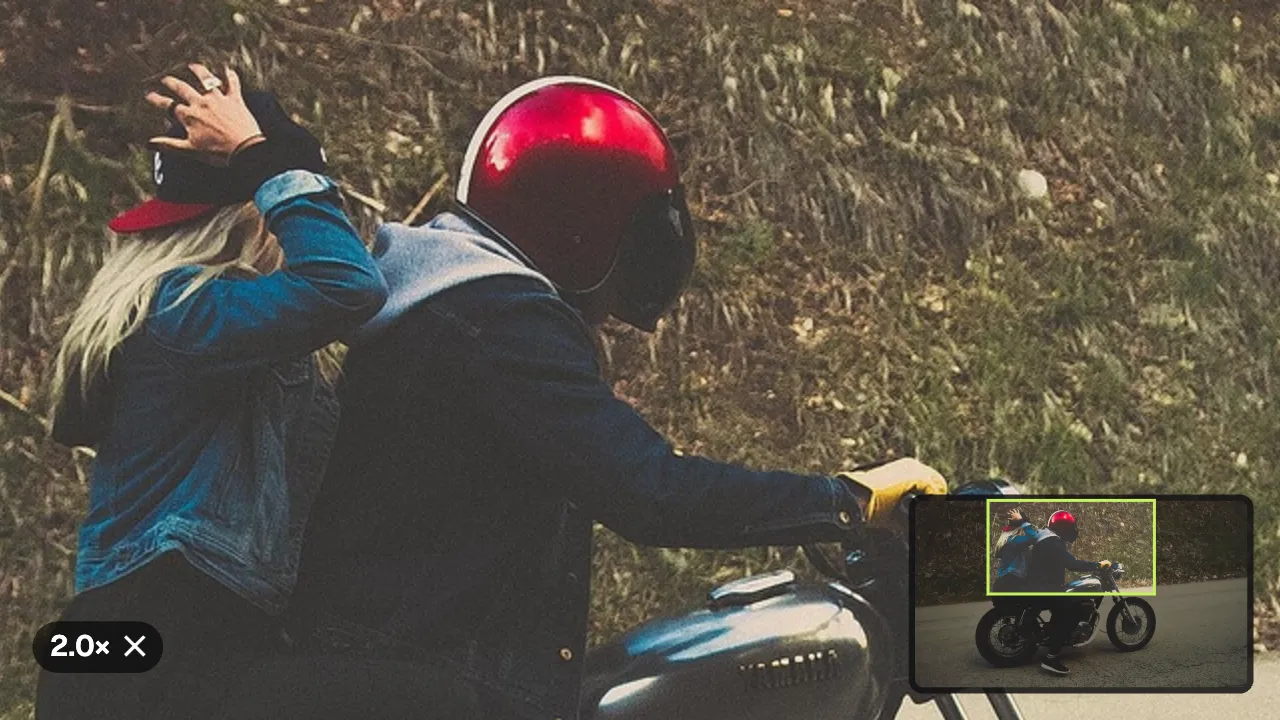
How it works
Drop your video
It opens on the Size tab, already a little closer, so you can see the zoom working straight away.
Pinch, scroll or slide
Zoom from 1× to 4× on the preview or with the slider, and drag the picture to choose what stays in view.
Save
Export an MP4, WebM, MOV or GIF at the size the video already had.
How to zoom in on a video on iPhone, Android or a computer
Shycut runs in your browser, so there is no app to install. On a phone you pinch the preview with two fingers; on a computer you pinch the trackpad or hold ⌘ or Ctrl and scroll. Need exact edges instead? Crop the video.
iPhone
- On this page, tap “Choose your video” and pick it from your photo library; it opens a little zoomed in.
- Pinch the preview with two fingers to zoom, and move both fingers to slide the picture.
- Check the whole video, then tap the ✕ on the zoom chip if you want to compare.
- Tap “Export” and “Create video”, then “Save to Photos”.
Android
- On this page, tap “Choose your video” and pick it from your gallery or Files; it opens a little zoomed in.
- Pinch the preview with two fingers to zoom, and move both fingers to slide the picture.
- Check the whole video, then tap the ✕ on the zoom chip if you want to compare.
- Tap “Export” and “Create video”; the new MP4 is saved in Downloads.
On a computer
- Drop the video on this page, or click “Choose your video”; it opens on the Size tab.
- Pinch the trackpad over the preview, or hold ⌘ or Ctrl and scroll; the slider works too.
- Drag the picture to place it, or right-click the preview for “Zoom in on the picture”.
- Click “Export” and “Create video” to save it at the same size.
What you get
- Zoom where you look
- The point under your fingers or your pointer stays put while you zoom, the way photos zoom on a phone.
- Every way to zoom
- A trackpad pinch, ⌘ or Ctrl with the scroll wheel, two fingers on a phone or a tablet, or a 1× to 4× slider.
- Drag to place it
- Drag the picture in the preview to move what is in view; it never slides past the picture’s edges.
- Same size out
- The frame keeps its pixels, a 1080 × 1920 Reel stays 1080 × 1920, and the zoom is drawn into it.
- Shows how far
- A small chip in the corner of the preview shows the zoom, and its ✕ brings the whole frame back.
- Nothing uploaded
- The browser zooms and encodes the video on your device. No sign-up, no account, no watermark.
When a video needs to be closer
Filmed from too far away
The stage, the kid on the pitch or the bird on the branch, brought closer and set in the middle of the frame.
Edges you don’t want
A lens corner, a cable or a stranger at the side, pushed out of view without choosing exact crop lines.
A detail in a tutorial
Zoom on the hands, the screw or the line of code so it can be read on a phone.
A tighter shot for vertical feeds
Zoom a wide clip in before making it 9:16, so the person fills the Reel instead of a wide room.
How zooming in works, and how far you can go
Zooming in an editor is not the same as zooming in a player. A player enlarges the picture while you watch; Shycut makes a new video in which the picture is enlarged for good, so everyone who watches it sees the closer view. The frame keeps its size and shape: zooming 2× fills the same 1080 × 1920 frame with the middle quarter of the picture, and where that quarter sits is up to you, by dragging.
The limit is detail. At 2× on a 1080p video, the part you see was filmed with 540 lines of picture, enlarged to 1080; at 4× with 270. Enlarged pixels look soft, and no zoom can add detail the camera didn’t record. So zoom from the sharpest copy you have (a 4K file zooms 2× to 1080p with no loss of detail), stay near 1.5× to 2× for faces, and save with High quality.
Zooming and cropping overlap. Zoom when you want to get closer and decide by eye; crop the video when you need exact edges, or a frame of a different shape. Both can be used together: crop first, then zoom into what you kept. And when the frame changes shape, a vertical Reel from a wide clip say, “Follow face” keeps the main person in view as they move, zoomed or not.
The zoom holds for the whole video: Shycut doesn’t animate a zoom in and out over time. Screen recordings are the exception: the screen recorder zooms in by itself where the work happens, and each of those moments can be turned off. Everything happens on your device, and the top of the page counts every byte sent, so you can see that the video stays with you.
Tips for a sharp zoom
- Start from the original file, not a copy saved from a chat app: those are often already shrunk.
- For a face, 1.5× to 2× is usually enough; beyond that, skin and hair start to look smeared.
- Play the whole video after zooming: someone who walks can leave a tight view.
- Zoom a wide clip a little before switching to 9:16, so the person isn’t lost in a tall frame.
- Click the ✕ on the zoom chip to compare with the whole frame before you save.
Private by construction
- Runs on your device
- Your browser opens, edits and saves the video. There is no server to send it to.
- Nothing is uploaded
- The counter in Shycut’s header measures every byte the app sends while you work. It stays at zero.
- Location data wiped
- Phones hide GPS positions inside videos. The file you save never carries them.
Questions
Is zooming in on a video here free?
Yes. Shycut is free, with no sign-up, no watermark and no paid plan, and it runs in your browser on a phone or a computer.
Does zooming in lower the quality?
Zooming enlarges part of the picture, so it shows less detail than the whole: at 2× on a 1080p video the view comes from 540 lines of picture. Start from the sharpest original, keep the zoom moderate and save with High quality.
How far can I zoom in?
From 1× to 4×. Beyond that the picture would be built from too few pixels to look like video.
Can the zoom change during the video, zooming in and out?
Not for ordinary videos: the zoom you set holds from start to end. Screen recordings get automatic zoom-ins where the work happens, which you can turn on or off moment by moment.
Will the video keep its size and shape?
Yes. Zooming fills the same frame: a 9:16 Reel stays 9:16 at the same resolution, and a 16:9 video stays 16:9.
Is my video uploaded to zoom it?
No. The browser reads, zooms and encodes it on your device, and the counter at the top of the page stays at 0 B for your video.
Your video stays with you.
Open Shycut, drop the video in and export. Free, with no account, and your video never leaves your device.
Choose your videoMore free tools
- Blur faces in video
- Pixelate a face
- Blur a moving face
- Blur children’s faces
- Blur license plates
- Dashcam video editor
- Remove location data
- Video metadata viewer
- Check a video’s location
- Remove silences
- Video voice changer
- Bleep out words in a video
- Add captions to video
- SRT subtitle generator
- Audio to text
- Resize for Reels & TikTok
- Crop a video
- Remove text from video
- Merge videos
- Merge portrait and landscape
- Add music to video
- Add text above a video
- Speed up video
- Screen recorder
- Podcast recorder
- Online voice recorder
- Mic test
- Audio editor
- Merge audio files
- Remove background noise
- Add a voice-over
- Audiogram maker
- Motovlog editor
- Merge GoPro videos
- GoPro speed overlay
- Remove wind noise