Remove text from a video
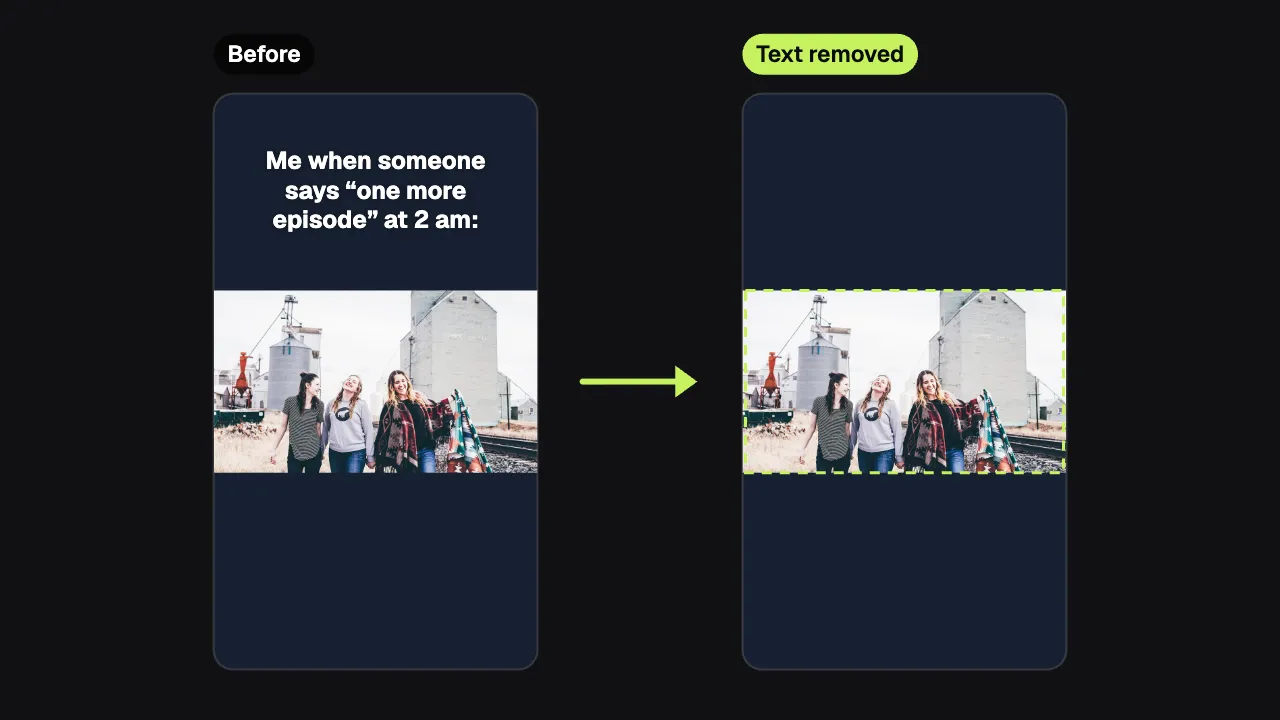
Most text burned into a video sits on a band of its own: the caption above a meme, subtitles on a black strip, a title bar. Choose the part of the picture to keep, and everything around it is emptied to the colour it was on, so the words are gone without a blur and the video keeps its 9:16 frame for Reels and TikTok. Then write your own words in the empty band, if you like. All on your device: nothing is uploaded.
Drop your video here
Choose your videoMP4, MOV, WebM or MKV. It opens right here, on your device.
- Nothing uploaded
- No sign-up
- No watermark
How it works
Drop your video
It opens on the Size tab with “Blank the rest” chosen and the crop box on the picture.
Keep the part that matters
Drag the box over the clip itself and press Done. Around it, the words disappear into the colour they sat on.
Save
The frame keeps its size and shape. Export an MP4, WebM, MOV or GIF, with new words on the band if you added any.
How to remove text from a video on iPhone, Android or a computer
Nothing to install: Shycut runs in your browser, so the steps are the same on a phone and a computer, with a finger or a mouse. For words over the moving picture rather than on a band, see hiding part of a video with a followed area.
iPhone
- On this page, tap “Choose your video” and pick it from your photo library; it opens with the crop box on the picture.
- Drag the box over the clip without the text, then tap “Done”: the band around it turns to its own colour.
- To write new words there, open the Media tab, tap the T button and type over “Your text”.
- Tap “Export” and “Create video”, then “Save to Photos”.
Android
- On this page, tap “Choose your video” and pick it from your gallery or Files; it opens with the crop box on the picture.
- Drag the box over the clip without the text, then tap “Done”: the band around it turns to its own colour.
- To write new words there, open the Media tab, tap the T button and type over “Your text”.
- Tap “Export” and “Create video”; the new MP4 is saved in Downloads.
On a computer
- Drop the video on this page, or click “Choose your video”; it opens with the crop box on the picture.
- Drag the box over the clip without the text and press Enter: the band around it turns to its own colour.
- Change the fill under “Fill the rest with”, or press T to write new words on the band.
- Click “Export” and “Create video” to save the MP4, WebM, MOV or GIF.
What you get
- Gone without a blur
- The emptied part takes the colour found around the kept part in your video, so a caption band looks as if nothing was ever written on it.
- Any colour, or a blur
- Pick black, white, any colour on screen with the eyedropper, or a soft blur of the kept clip.
- The frame stays a Reel
- Nothing is enlarged and nothing moves: a 9:16 video is still 9:16, ready for Reels, TikTok and Shorts.
- Room for your own words
- Add text in the emptied band; it is drawn above the fill, in four looks, three fonts and six colours.
- Or crop the words away
- Switch to “Fill the frame” and the kept part becomes the whole picture instead, fitted to any shape.
- Nothing uploaded
- Your browser does it all on your device. No account, no sign-up and no watermark of ours added.
When text has to go
Your own meme, a new caption
The joke changed, or it needs Turkish instead of English: empty the old band and type the new line in it.
Captions saved into your clip
An app burned captions into your video when you saved it: keep the picture above them and empty the strip.
A title bar you don’t want
An old intro or an event banner across the top of your recording, gone while the frame stays the same.
One video, several platforms
Remove the text made for one platform and add text sized for the next, in the same edit.
Ways to remove text from a video, and which one works when
Text burned into a video is part of the picture: there is no layer to switch off, so something has to take its place. There are four ways to do that. Cropping cuts the part with the text away and enlarges the rest. Covering puts a plain colour or a blur over the words. AI inpainting tries to paint what might have been behind them. And for text that isn’t burned in, such as captions an app shows on top of a post, the answer is a setting in that app, not an edit.
Shycut does the first two, honestly and on your device, and it doesn’t paint in made-up pixels. “Blank the rest” is the one most people want: the text on a meme, a reaction video or a subtitled clip almost always sits on a band of flat colour, so keeping the clip and emptying the band to that same colour removes the words without a trace and without a blur. Shycut finds the colour itself, from the edges of the part you keep, and you can change it with a tap or the eyedropper.
When the words sit over the moving picture itself, a band won’t do. Crop them out with “Fill the frame” if they are near an edge, and if they are in the middle, cover them with a followed area: in the Privacy tab, “Add area” lets you draw around the text and hides it as a blur, pixels or a solid box that follows the movement. Our pages on cropping a video and hiding faces and other parts of a video cover both.
One thing this is not for: removing someone else’s watermark, logo or credit to post their work as yours. That can break copyright and the rules of every platform, and it takes away the credit a creator is owed. Use these tools on videos you made or have the right to edit. If what you want is to write your own words above the clip, the text above a video page sets it up in one tap.
Tips for a clean result
- Pull the box just inside the clip’s edges, so no sliver of the old band, or of the letters, survives.
- If the band isn’t one flat colour, try “A blur” instead: a gradient band looks smoother blurred.
- Scrub through the video: some captions move or change size, and the kept part has to clear them all.
- Add your new words before saving, so you can see them against the band’s colour.
- Keep the original file: the edit can always be opened again and the band brought back.
Private by construction
- Runs on your device
- Your browser opens, edits and saves the video. There is no server to send it to.
- Nothing is uploaded
- The counter in Shycut’s header measures every byte the app sends while you work. It stays at zero.
- Location data wiped
- Phones hide GPS positions inside videos. The file you save never carries them.
Questions
Can I remove text from a video without blurring it?
Yes, when the text sits on a band of colour, which is how most memes and captioned clips are made. “Blank the rest” empties the band to the colour around the part you keep, so the words disappear with no blur. A blur is there too, as a choice.
Does it use AI to fill in what was behind the text?
No. Shycut doesn’t invent pixels: it crops the text away, empties its band to a colour or a blur, or covers it with a followed area. Nothing behind the words is guessed, and nothing is uploaded to a server to do it.
Can I remove subtitles that are burned into a video?
If they sit on their own strip or band, yes: keep the picture above them and empty the strip. If they are written over the picture itself, crop them out or cover them with an area in the Privacy tab. Subtitles that a player shows from a separate file aren’t in the picture at all and can simply be turned off.
Will my video keep its size for Reels and TikTok?
Yes. With “Blank the rest” the frame and the picture stay exactly where they are: a 1080 × 1920 video is still 1080 × 1920, and nothing is enlarged.
Can I use this to remove a watermark?
Don’t use it on someone else’s watermark, logo or credit: reposting another creator’s work without them can break copyright and platform rules. Use it on videos you made or have the right to edit, like your own clip with an old caption.
Is it free, and is my video uploaded?
It is free, with no sign-up and no watermark, and your video isn’t uploaded: it is read, edited and saved by your browser on your device.
Your video stays with you.
Open Shycut, drop the video in and export. Free, with no account, and your video never leaves your device.
Choose your videoMore free tools
- Blur faces in video
- Pixelate a face
- Blur a moving face
- Blur children’s faces
- Blur license plates
- Dashcam video editor
- Remove location data
- Video metadata viewer
- Check a video’s location
- Remove silences
- Video voice changer
- Bleep out words in a video
- Add captions to video
- SRT subtitle generator
- Audio to text
- Resize for Reels & TikTok
- Crop a video
- Zoom in on a video
- Merge videos
- Merge portrait and landscape
- Add music to video
- Add text above a video
- Speed up video
- Screen recorder
- Podcast recorder
- Online voice recorder
- Mic test
- Audio editor
- Merge audio files
- Remove background noise
- Add a voice-over
- Audiogram maker
- Motovlog editor
- Merge GoPro videos
- GoPro speed overlay
- Remove wind noise