Crop a video, right in your browser
Drag a box over the part of the picture you want to keep and everything outside it goes: a black border, a messy edge, a stranger at the side of the shot. Save the cropped video as it is, or fit it to Reels, TikTok or YouTube in the same step. It is free, there is no watermark, and the video never leaves your device.
Drop your video here
Choose your videoMP4, MOV, WebM or MKV. It opens right here, on your device.
- Nothing uploaded
- No sign-up
- No watermark
How it works
Drop your video
MP4, MOV, WebM or MKV, from a phone or a camera. It opens on the Size tab with the crop box already on the picture.
Drag the box
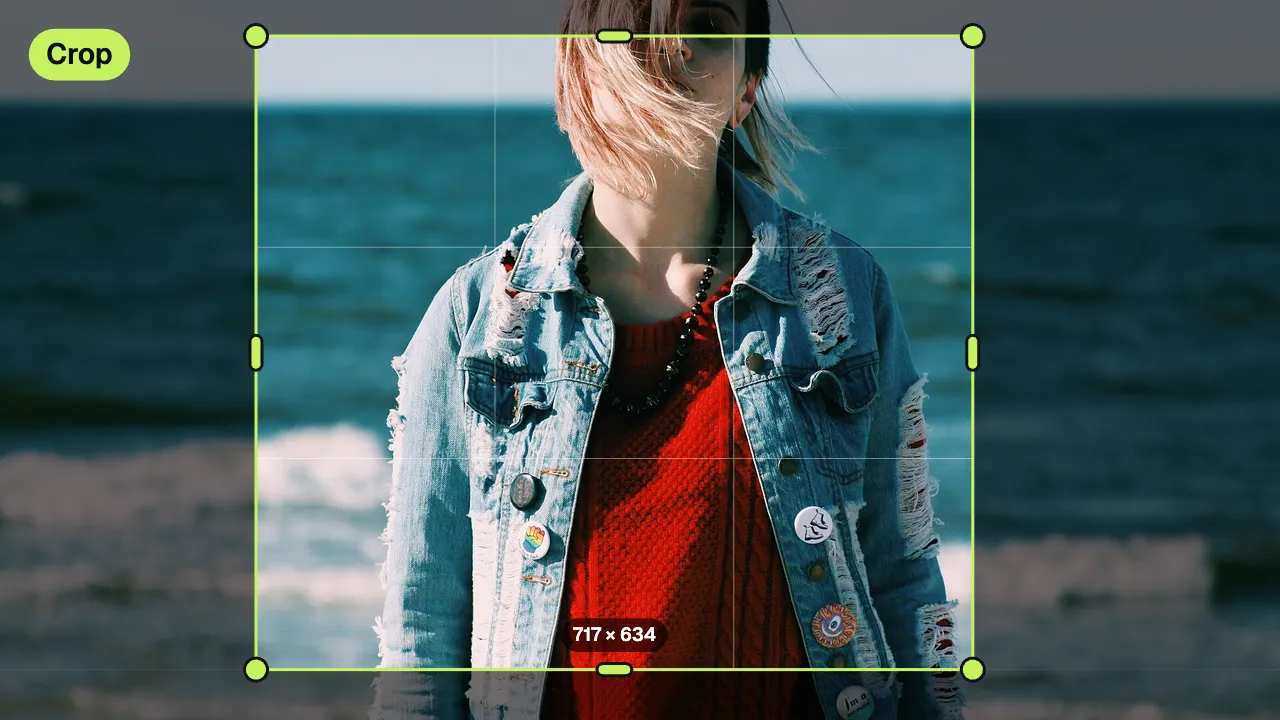
Pull its corners and edges, or drag it from the middle. Keep it free, or hold it to the video’s own shape or a 9:16 frame.
Save
Press Done, choose a shape if you want one, and export an MP4, WebM, MOV or GIF.
How to crop a video on iPhone, Android or a computer
There is nothing to install: Shycut runs in the browser you already have, so the steps are almost the same on every device. Only dragging the box differs, with a finger on a phone and the mouse on a computer. To make a wide video vertical instead of cutting edges, see resize for Reels and TikTok.
iPhone
- On this page, tap “Choose your video” and pick it from your photo library; Shycut opens in Safari with the crop box on the picture.
- Drag the box’s corners and edges with your finger, or drag it from the middle to move it.
- Tap “Done”. To post it as a Reel, choose 9:16 in the Size tab.
- Tap “Export” and “Create video”, then “Save to Photos”.
Android
- On this page, tap “Choose your video” and pick it from your gallery or Files; Shycut opens in Chrome with the crop box on the picture.
- Drag the box’s corners and edges with your finger, or drag it from the middle to move it.
- Tap “Done”. To post it as a Reel or a Short, choose 9:16 in the Size tab.
- Tap “Export” and “Create video”; the new MP4 is saved in Downloads.
On a computer
- Drop the video on this page, or click “Choose your video”; it opens with the crop box on the picture.
- Drag the handles, hold Shift to keep the box’s shape, or use the arrow keys for exact steps.
- Press Enter or click “Done”, then pick a shape in the Size tab if you want one.
- Click “Export” and “Create video” to save the cropped MP4, WebM, MOV or GIF.
What you get
- A box you drag, not numbers
- Eight handles on the crop box, a grid of thirds while you drag, and the kept size in pixels as you go.
- Free or held to a shape
- Crop freely, keep the video’s own proportions, or crop straight to the frame you post in. Shift holds the shape too.
- Fill the frame, or keep it
- Let the kept part become the whole picture, or keep the frame as it is and empty the rest to a colour or a blur.
- Then any platform shape
- After cropping, pick 9:16, 4:5, 1:1 or 16:9. “Original” follows the shape of your crop.
- Exact from the keyboard
- Arrow keys move the box in 1 % steps (Shift for 10 %), and Alt with the arrows resizes it.
- Nothing uploaded
- The browser decodes, crops and encodes the video on your device. No account, no sign-up, no watermark.
When a video needs cropping
Black bars baked into the picture
A screen recording or an old clip with bars on its sides or top: crop them away so the picture fills the frame.
Something at the edge of the shot
A passer-by, a messy shelf or your thumb at the side: keep only the part of the picture you meant to film.
A detail worth showing bigger
Crop in on the dish, the product or the trick, then save it in the shape your feed wants.
A clip from a wider recording
One window of a screen recording or one person of a group shot, cut out as a video of its own.
How cropping works, and how to keep the picture sharp
Cropping keeps a rectangle of the picture and throws the rest away, for the whole length of the video. In Shycut the crop comes first: whatever you cut away is gone before anything else happens, so a platform shape, a blurred background or a zoom all work on what you kept. With the shape set to “Original”, the saved video takes the shape of your crop: crop a 16:9 clip to a strip and you get a strip.
The size of the saved video comes from the whole original, not from the crop. That keeps the file the size people expect, a 1080 × 1920 Reel stays 1080 × 1920, but it means a small crop is enlarged to fill the frame, and enlarged pixels look softer. To keep a crop sharp, crop no more than you need, start from the largest original you have (4K crops well to 1080p), and choose High quality when you save. Cropping can’t add detail that was never filmed.
The crop box has two jobs. “Fill the frame”, the default, makes the kept part the whole picture. “Blank the rest” keeps the frame and the picture exactly where they are and empties everything around the kept part instead, to a plain colour or a blur. That is the one to use when the frame has to stay a 9:16 Reel and only a caption band or a logo corner should go; our page on removing text from a video walks through it.
Cropping is not the same as changing the shape. If you only want a wide video to become vertical, resize it for Reels and TikTok: the frame follows a face or sits where you drag it, and nothing needs drawing by hand. If you want to get closer without choosing edges, zoom in on the video with a pinch or a slider. All three work together in one edit, and none of them uploads the video.
Tips for a clean crop
- Play the whole video before saving: a crop that fits the first second can cut off a head later on.
- Keep faces on the upper third line of the grid: crops that centre a face vertically feel cramped.
- Hold the box to the video’s own shape (“Original” in the crop bar) when only the edges should go.
- Cropping a lot? Choose 1080p or Original resolution and High quality, so the enlarged picture stays clean.
- Remove the crop with the reset button next to “Change the crop”; nothing else in the edit changes.
Private by construction
- Runs on your device
- Your browser opens, edits and saves the video. There is no server to send it to.
- Nothing is uploaded
- The counter in Shycut’s header measures every byte the app sends while you work. It stays at zero.
- Location data wiped
- Phones hide GPS positions inside videos. The file you save never carries them.
Questions
Is it free to crop a video here, without a watermark?
Yes. Shycut is free, with no sign-up, no watermark and no paid plan. It runs in your browser, so there is nothing to install on a phone or a computer.
Is my video uploaded to crop it?
No. Decoding, cropping and encoding all happen on your device, and the top of the page counts every byte the page sends: it stays at 0 B for your video.
Can I crop a video without losing quality?
Cropping throws pixels away, and the saved video is encoded again, so it is never bit-for-bit lossless. You lose the least by cropping only what you must, saving at Original resolution with High quality, and starting from the sharpest original you have.
Can I crop only the top or the bottom of a video?
Yes. Drag the top or bottom edge of the box and leave the others where they are. If the frame should keep its size, a Reel stays 9:16 say, choose “Blank the rest” so the cut part becomes a plain colour instead of the picture being enlarged.
Is cropping the same as trimming?
No. Cropping removes part of the picture; trimming removes time from the start or the end. Shycut does both: trim on the timeline’s handles, crop on the Size tab.
Can the crop move during the video?
The crop box itself stays put for the whole video. A frame that moves is what “Follow face” does when you change the shape: it keeps the main person in view as they move.
Your video stays with you.
Open Shycut, drop the video in and export. Free, with no account, and your video never leaves your device.
Choose your videoMore free tools
- Blur faces in video
- Pixelate a face
- Blur a moving face
- Blur children’s faces
- Blur license plates
- Dashcam video editor
- Remove location data
- Video metadata viewer
- Check a video’s location
- Remove silences
- Video voice changer
- Bleep out words in a video
- Add captions to video
- SRT subtitle generator
- Audio to text
- Resize for Reels & TikTok
- Remove text from video
- Zoom in on a video
- Merge videos
- Merge portrait and landscape
- Add music to video
- Add text above a video
- Speed up video
- Screen recorder
- Podcast recorder
- Online voice recorder
- Mic test
- Audio editor
- Merge audio files
- Remove background noise
- Add a voice-over
- Audiogram maker
- Motovlog editor
- Merge GoPro videos
- GoPro speed overlay
- Remove wind noise