Make an audiogram: sound into a video with a moving wave
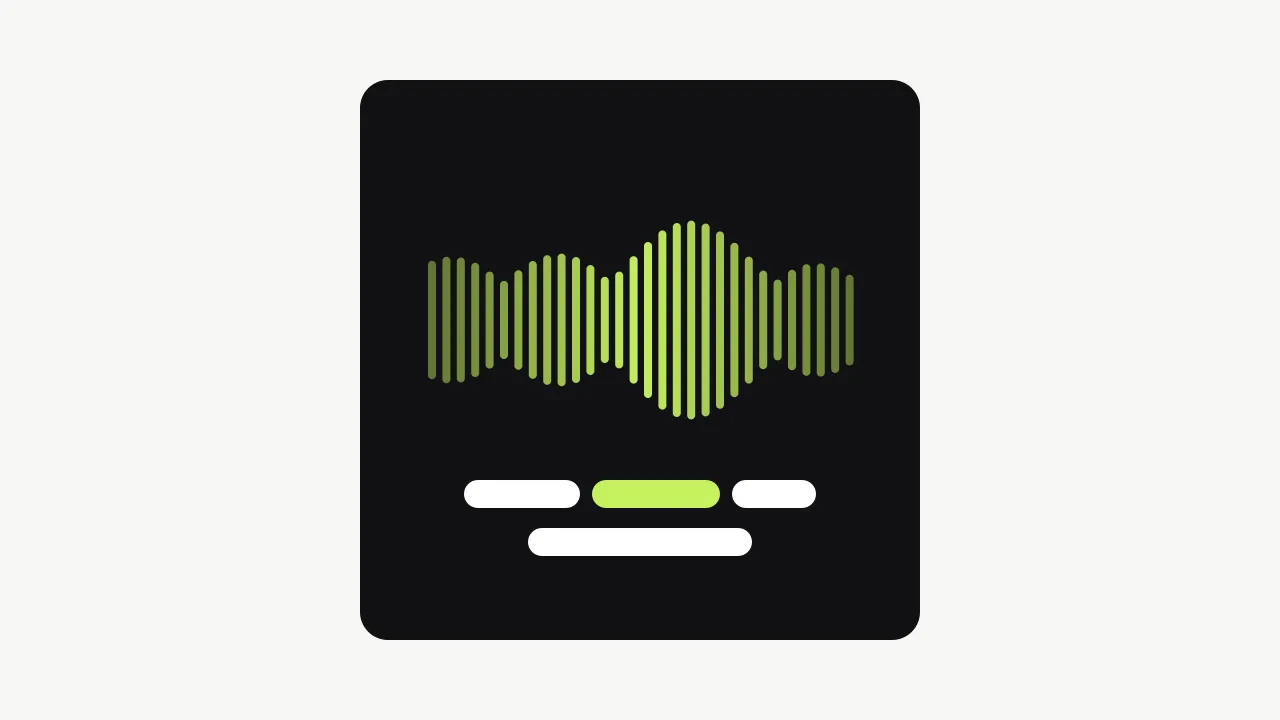
Drop an MP3, M4A or WAV and it opens as a square video: a sound wave that moves with the voice, and the speech written word by word as captions. Trim it to the best minute, add a title, pick the wave’s look and colour, and save an MP4 to post where sound alone can’t go. Free, with no account, and the audio stays on your device.
Drop your audio file here
Choose your audio fileMP3, M4A, WAV, FLAC or OGG. It opens right here, on your device.
- Nothing uploaded
- No sign-up
- Free
How it works
Drop the audio
MP3, M4A, WAV, FLAC or OGG: a podcast episode, an interview or a voice note.
Pick the best part
Trim to the minute worth sharing; the captions are written as it opens.
Save the video
Add your cover, choose bars, a line, a ring or frequencies and a colour, and save an MP4.
What you get
- A wave that moves with the voice
- Drawn from the sound itself, frame by frame, the same in the preview and the file.
- Captions word by word
- The speech is written on your device and burned in, each word lighting up as it is said.
- Bars, a line, a ring or frequencies
- Loudness across the frame or round your cover, or the bass and treble, in five colours.
- Square, or vertical
- A square to start; switch to 9:16 for Reels and TikTok in the Size tab.
- Your cover art
- The podcast’s picture sharp with the wave, blurred across the frame behind it.
- Nothing uploaded
- Made in your browser. No account, no watermark, no subscription.
What people turn into audiograms
Podcast clips
The best minute of an episode, posted where people scroll with the sound off.
Interviews and quotes
A strong answer, with its words on screen so it lands without sound.
Voice notes and poems
A spoken piece turned into something that can be posted as a video.
Radio and music talk
A segment or an announcement shared on social as a short video.
Audiograms without a subscription
Most social apps take videos, not sound, and many people scroll with the sound off. An audiogram solves both: the sound becomes a video, a moving wave shows that something is playing, and captions carry the words. Here you drop the audio file and it opens that way: a plain dark square, the wave already on, and the speech being written down by a model that runs on your device (100 to 300 MB, downloaded once, and you are asked first on mobile data).
Keep it short: social clips do best at under a minute, so trim to the best part on the timeline, or cut the pauses and “um”s to tighten it. The wave comes in four looks: rounded bars or one smooth line across the frame, a ring round your cover, or frequency bars that show the bass in the middle and the treble at the ends, in five colours. It is drawn from the finished sound, so cut parts are left out and it moves exactly with the voice. The captions light up word by word and can be corrected in place; a title in one of four looks can go on top.
The square suits Instagram, LinkedIn and X. For Reels, TikTok and Shorts, switch the Size tab to 9:16: the square sits in the middle, and the bands above and below can stay plain or take the title. The video is saved as an MP4 with the sound as it was, evened out to the level social apps play at; the same edit can also be saved as sound again, an MP3 for your podcast host.
Everything is made in your browser, so the audio, the words and the video never leave your device; there is no account, no watermark and no monthly limit. Add the podcast’s cover art and it shows sharp with the wave, inside the ring or above the bars, and fills the frame behind it, blurred and shaded so the words read; without it, the frame is a plain dark square. There are no templates or stock backgrounds. If you are recording the episode in the first place, the podcast recorder saves it with the wave already set up; if you only need the words, turn the recording into text.
Tips for an audiogram people stop for
- Start on a strong sentence: the first two seconds decide whether people stay.
- Keep it under a minute; post a link to the full episode with it.
- Read the captions once: a wrong name on screen is worse than none.
- Put the wave low when there is a title, in the middle when the captions are the focus.
- Use lime or white on the dark square; they read best on small screens.
Private by construction
- Runs on your device
- Your browser opens, edits and saves the sound. There is no server to send it to.
- Nothing is uploaded
- The counter in Shycut’s header measures every byte the app sends while you work. It stays at zero.
- Your file stays as it was
- The browser only reads the file you open. What you save is a new file; the original is never changed.
Questions
Is the audiogram maker free?
Yes, with no account, no watermark and no monthly limit. It runs on your own device.
Which audio files can I use?
MP3, M4A, AAC, WAV, FLAC, OGG and Opus, or the sound of a video. The result is an MP4.
Are the captions automatic?
Yes. The speech is written down on your device, word by word, and burned into the video. You can fix any word before saving.
Can I make a vertical audiogram for Reels or TikTok?
Yes. Switch the shape to 9:16 in the Size tab; the square sits in the middle of the tall frame.
Can I add my podcast’s cover art?
Yes. Under Sound wave in the Audio tab, add a cover picture: it shows sharp with the wave, inside the ring or above the bars, and blurred across the frame behind it. It is kept with the project.
Is my audio uploaded?
No. The audio, the captions and the video are all made and kept on your device.
Your audio stays with you.
Open Shycut, drop the audio file in and export. Free, with no account, and your audio never leaves your device.
Choose your audio fileMore free tools
- Blur faces in video
- Pixelate a face
- Blur a moving face
- Blur children’s faces
- Blur license plates
- Dashcam video editor
- Remove location data
- Video metadata viewer
- Check a video’s location
- Remove silences
- Video voice changer
- Bleep out words in a video
- Add captions to video
- SRT subtitle generator
- Audio to text
- Resize for Reels & TikTok
- Crop a video
- Remove text from video
- Zoom in on a video
- Merge videos
- Merge portrait and landscape
- Add music to video
- Add text above a video
- Speed up video
- Screen recorder
- Podcast recorder
- Online voice recorder
- Mic test
- Audio editor
- Merge audio files
- Remove background noise
- Add a voice-over
- Motovlog editor
- Merge GoPro videos
- GoPro speed overlay
- Remove wind noise