Record your voice online, and save a clean MP3
Press record, talk, press finish: the recording opens with its noise reduced and its pauses found, to cut with one tap, ready to save as an MP3, M4A or WAV. The words can be written down too, on your device, to edit the sound by its text or keep as notes. It works on a computer and on a phone, with no sign-up, and nothing you say is uploaded.
Your microphone, and a guest on a call if you like
Start recordingYour camera and microphone turn on only when you allow them. Everything is recorded on this device.
- Nothing uploaded
- No sign-up
- Free
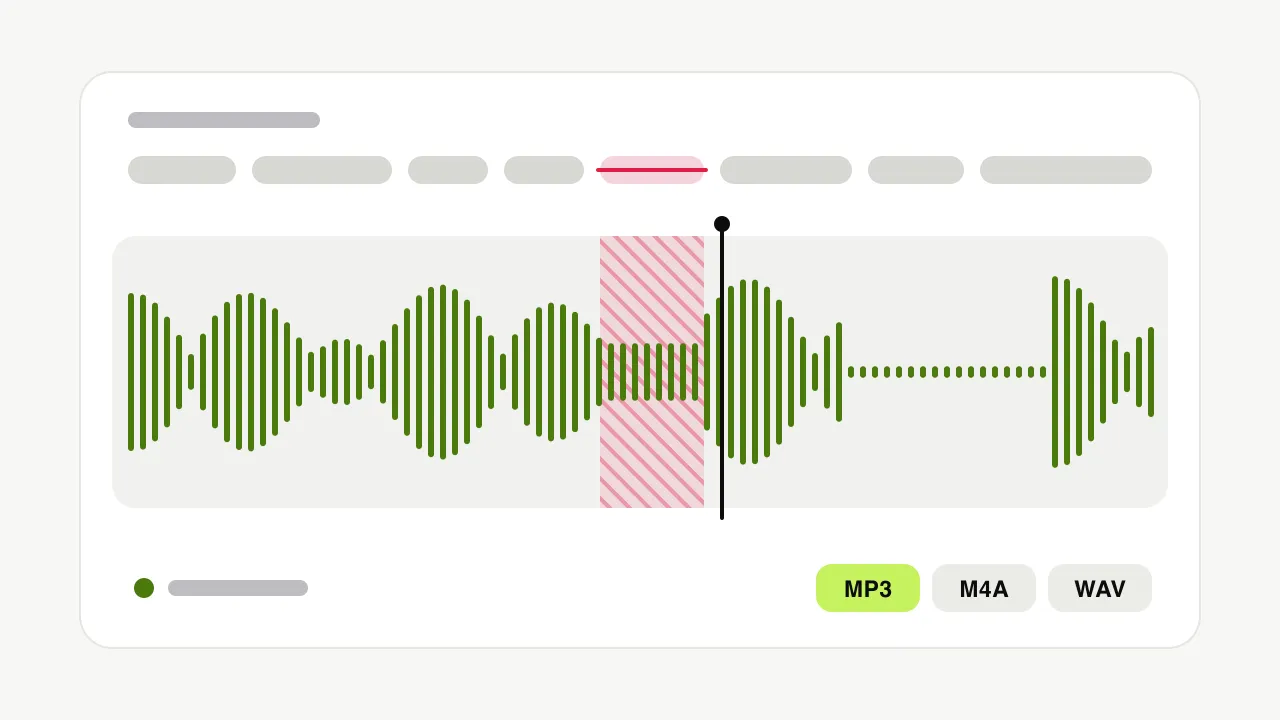
How it works
Open the recorder
Choose Voice and allow the microphone. A ring moves as you speak, so you know it hears you before you start.
Record
A short countdown, then a live trace of your voice. Space pauses, R throws away a take, S finishes.
Save the sound
It opens cleaned up, its pauses found. Listen, cut what you don’t want, and save an MP3, M4A or WAV.
How to record your voice on any device
The same recorder on every device, in the browser. For an interview over a call, use the podcast recorder on a computer.
iPhone and iPad
- Open Shycut in Safari or Chrome and tap Record, then Voice.
- Tap Allow when the browser asks for the microphone.
- Tap Start recording, speak, and tap Finish when you are done.
- Save as M4A or MP3; the file goes to Downloads in the Files app.
Android
- Open Shycut in Chrome and tap Record, then Voice.
- Allow the microphone when Chrome asks.
- Tap Start recording, speak, and tap Finish.
- Save as MP3; it lands in your Downloads folder.
On a computer
- Open Shycut in Chrome, Edge, Firefox or Safari and click Record, then Voice.
- Pick your microphone from the list if you have more than one, and watch the ring move as you speak.
- Click Start recording. Space pauses, R retakes, S finishes.
- Trim what you don’t want and save an MP3, M4A or WAV.
What you get
- MP3, M4A or WAV
- Save in the file your app, your teacher or your host asks for, at 96, 160 or 256 kbit/s, or WAV uncompressed.
- Noise reduced
- Hum, fans and room noise are reduced and the level evened out when you save. Both can be switched off.
- Pauses found
- Long silences and “um”s are found as it opens: cut them in one tap, or leave them. Every cut can be brought back.
- The words written down
- One tap and a speech model on your device writes what you said, to edit the sound by its words or save as subtitles.
- On a phone too
- Record in a current phone browser as well as on a computer. Nothing to install, no app store, no account.
- Kept if the tab closes
- The sound is written to your device every second; a closed tab or a crash keeps what you recorded.
What people record with it
A voice-over or a voice note
Record the narration for a video or a presentation, trim the breaths and gaps, save an MP3 to drop into your editor.
Homework and auditions
Read a text aloud, practise a language or record a monologue, then send a clean file instead of a phone memo.
Ideas and meeting notes
Talk an idea through and get the words written down with it, without the recording going to anyone’s server.
Practising a talk
Record a run-through with your notes scrolling beside you, listen back, and do it again until it flows.
A voice recorder that cleans up after itself, on your own device
Most online voice recorders give you the raw sound: every breath, every pause and the hum of the room, in whatever format the site picked. Shycut records the same way, in your browser, and then opens the recording in an editor that has the tedious part ready. Long pauses and “um”s are found and offered, so one tap cuts them (each cut is listed and can be undone; nothing is cut until you say so), and when you save, noise is reduced and the loudness is evened out to −14 LUFS, the level most apps play sound at.
Nothing is uploaded at any point. The microphone’s sound goes from your browser to your own device, written every second so a closed tab or a crash doesn’t lose it, and the counter in the app header shows that the page sends zero bytes. That matters for what people record: a diary, a lesson, a meeting, a client’s words. There is no account to make and no time limit from us; the only limit is free space on your device.
If you want the words as well as the sound, the speech is written down by a model that runs on your device; it is downloaded once, only when you ask for the words (100 to 300 MB). With the words on screen you can delete a sentence by selecting it, and the sound goes with it, save the text as plain text or Markdown, or as an SRT subtitle file. Already have a recording, a voice memo from your phone say? Drop the MP3, M4A or WAV on Shycut’s home page and it opens the same way, to clean up, trim and write down. Recording a conversation with someone on a call, or a whole show? The podcast recorder brings a guest’s sound in from the call’s tab and adds show notes and intro music.
Saving starts on MP3, the file almost everything opens. M4A is smaller at the same quality and plays well on Apple devices; WAV is uncompressed, for editing elsewhere or a studio that asks for it. You can also save the recording as a video: a plain square with your words as captions, for a voice note people scroll past on social. Recording someone else? Ask them first, and tell them where the file will go.
Tips for a clean voice recording
- Record in a small, soft room: curtains, a sofa and a rug swallow the echo that bare walls throw back.
- Keep the microphone a hand’s width from your mouth and slightly to the side, so “p” and “b” don’t pop.
- Press “Test the microphone” first: three seconds are played straight back, with a word on whether you sound too quiet or too loud.
- Leave a second of silence before and after you speak; cutting the pauses takes care of the rest.
- Saving to edit elsewhere? Choose WAV, so nothing is lost before your next tool compresses it.
Private by construction
- Recorded on your device
- Your browser records, edits and saves it. There is no server to send it to.
- Nothing is uploaded
- The counter in Shycut’s header measures every byte the app sends while you work. It stays at zero.
- Safe while you record
- Every second is written to your device as you go, so a closed tab or a crash keeps what you recorded.
Questions
Is the online voice recorder free?
Yes. No account, no sign-up, no watermark and no time limit from us. The only limit is free space on your device, and the recorder warns you before it runs low.
Can I download the recording as an MP3?
Yes. Saving starts on MP3, at 96, 160 or 256 kbit/s. You can also save an M4A, or a WAV without any compression.
Does it remove background noise?
Yes. Noise reduction for hum, fans and room noise is on for voice recordings and applied when you save, and the loudness is evened out. You can switch either off in the Audio tab.
Can it turn my recording into text?
Yes. A speech model running on your device writes down what you said, with the time of every word. You can edit the sound by its words, then download the text as plain text or Markdown, or as an SRT file. The model is downloaded once, and you see its size first.
Does it work on a phone?
Yes, in a current phone browser. Choose Voice in the recorder and allow the microphone. Recording a guest’s sound from another tab needs a computer.
Is my voice uploaded anywhere?
No. The recording is made, edited and saved on your own device, and nothing is streamed to a server. The counter in the app header shows the bytes the page sends, and it stays at zero.
Your recording stays with you.
Start recording right in your browser. Free, with no account, and nothing you record leaves your device.
Start recordingMore free tools
- Blur faces in video
- Pixelate a face
- Blur a moving face
- Blur children’s faces
- Blur license plates
- Dashcam video editor
- Remove location data
- Video metadata viewer
- Check a video’s location
- Remove silences
- Video voice changer
- Bleep out words in a video
- Add captions to video
- SRT subtitle generator
- Audio to text
- Resize for Reels & TikTok
- Crop a video
- Remove text from video
- Zoom in on a video
- Merge videos
- Merge portrait and landscape
- Add music to video
- Add text above a video
- Speed up video
- Screen recorder
- Podcast recorder
- Mic test
- Audio editor
- Merge audio files
- Remove background noise
- Add a voice-over
- Audiogram maker
- Motovlog editor
- Merge GoPro videos
- GoPro speed overlay
- Remove wind noise