Bleep out words in a video
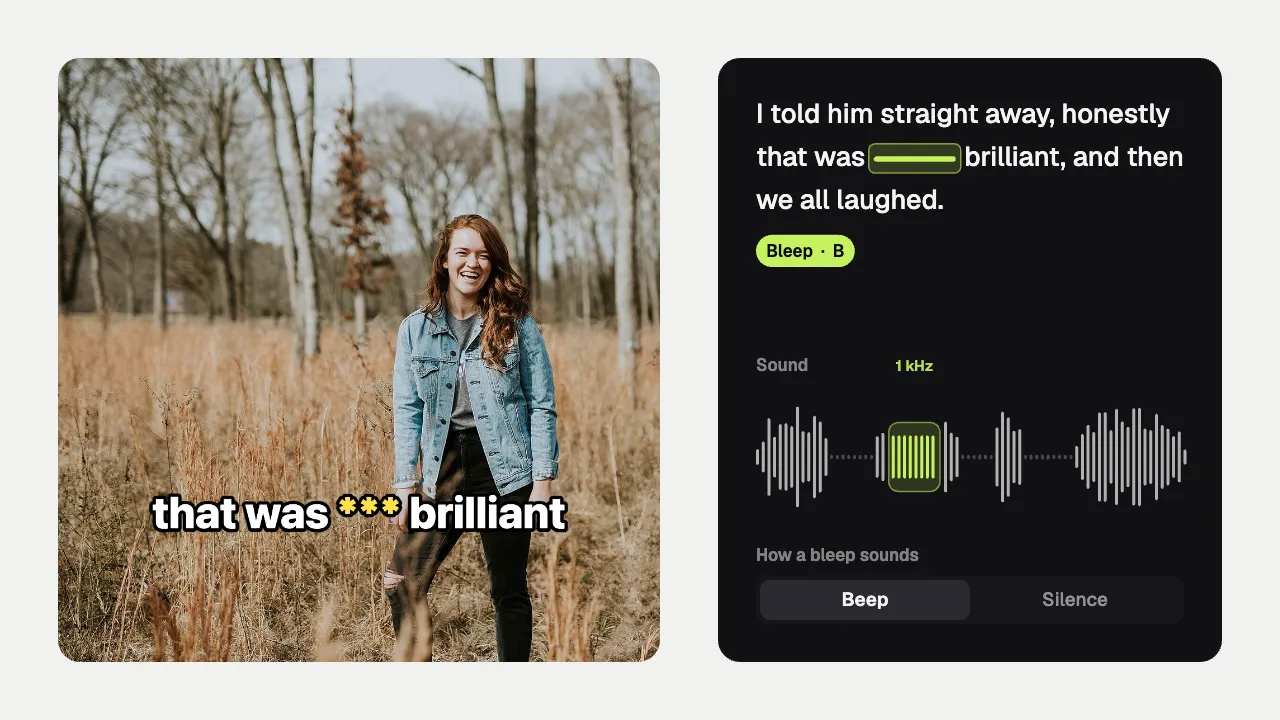
The speech is written down on your device. Select a swear word, a name or an address in the text and press Bleep: it is covered with a beep or silence in the sound, and starred out in captions and subtitle files, so nothing on screen gives it away. Free, in your browser, and the video is never uploaded.
Drop your video here
Choose your videoMP4, MOV, WebM or MKV. It opens right here, on your device.
- Nothing uploaded
- No sign-up
- No watermark
How it works
Drop your video
It opens on the Text tab, where the speech is written down word by word, on your device.
Select the words
Select one word or a few in the text and press Bleep, or the B key. Choose a beep or silence.
Save
Export the video, the sound alone or an SRT file. The bleeped words are covered in every one of them.
How to bleep out words on iPhone, Android or a computer
There is no app to install: Shycut runs in the browser you already have, so the steps are almost the same everywhere. Only selecting the words differs, with your finger on a phone and the mouse on a computer. Want the words on screen too? Add captions in the same edit; bleeped words are starred out there.
iPhone
- On this page, tap “Choose your video” and pick it from your photo library; Shycut opens right in Safari, on the Text tab.
- Wait while the speech is written down. On mobile data it waits for you: tap “Write the speech down” when you are ready for the download.
- Touch and hold a word, drag the handles over the words to cover, then tap “Bleep”.
- Tap “Export” and “Create video”, then “Save to Photos”.
Android
- On this page, tap “Choose your video” and pick it from your gallery or Files; Shycut opens right in Chrome, on the Text tab.
- Wait while the speech is written down. On mobile data it waits for you: tap “Write the speech down” when you are ready for the download.
- Touch and hold a word, drag the handles over the words to cover, then tap “Bleep”.
- Tap “Export” and “Create video”; the new MP4 is saved in Downloads.
On a computer
- Open this page in Chrome, Edge or Safari and drop the video onto it.
- The speech is written down in the Text tab as the video opens.
- Select words with the mouse and press B, or the Bleep button. Choose “Beep” or “Silence” under the list of bleeps.
- Export the video, or save the captions as an SRT file: the bleeped words are *** there too.
What you get
- Pick words by reading
- Bleeps are placed on the words themselves, from the timing of each word, so you never hunt along a sound wave for the right spot.
- A beep or silence
- The classic 1 kHz beep, or plain silence when you would rather the word just disappear.
- Starred out in captions
- Captions burned into the video, the preview and SRT files show *** in place of the word; the punctuation around it stays.
- Exactly on the word
- Each bleep starts a moment before the word and ends just after it, without clipping the words on either side.
- Easy to change your mind
- Every bleep is listed with a button to remove it, and bleeps stay on their words when you cut or move clips.
- Any language the captions know
- The speech model writes down dozens of languages, so you can bleep words in any of them, on your device.
When a word has to go
Swear words
Keep the moment and lose the word: a family channel, a school project, a clip for a client or an audience of every age.
Names, addresses and numbers
A surname, a street or a phone number slipped out on camera. Bleep it instead of throwing the whole take away.
Interviews and vox pops
A source names their employer, a passer-by says a colleague’s name. Bleep the name and the rest of the answer stays.
Brands and spoilers
A product you can’t name in a sponsored video, or the ending of a film in a review.
How bleeping works, and why the captions matter
A bleep covers a word with a short tone so the listener knows something was said and doesn’t hear what. The broadcast standard is a pure tone around 1 kHz, high enough to stand out from speech and plain enough not to distract. Silence does the same job more quietly: the word just drops out, which suits a calm interview or a video with music under it.
Shycut writes the speech down first, on your device, with the timing of every word; the speech model is a one-time download of 100 to 300 MB. A bleep then covers exactly the stretch where the selected words are heard, so you choose by reading instead of dragging markers along a sound wave. The tone is added cleanly after any voice change, and the bleeps are listed in the Text tab, where one tap removes any of them.
A bleep that leaves the word on screen gives it away anyway, and captions are where that usually happens. So a bleeped word becomes *** wherever it would be read: in captions burned into the video, in the preview, and in the SRT file you upload to YouTube. One limit to know: chapter titles you type yourself are free text and are not starred out, so read them over before you publish.
Everything happens in your browser: the video is never uploaded, and nothing in it goes to a server to be transcribed. When the point is to protect someone rather than to keep a clip clean, a bleep is one part of it: change their voice too, blur their face, and go through the checklist in our guide to disguising a voice.
Tips for clean bleeps
- Read the whole transcript once before you export: names and places often come back later in the video.
- If the speech model misheard a word, select it anyway: the bleep follows when it was said, not how it was spelled.
- Silence sounds calmer under music; a beep is clearer when the joke depends on it.
- Click a word to play from there, and listen to each bleep in the preview before you save.
- Chapter titles you type yourself aren’t starred out; check them by hand.
Private by construction
- Runs on your device
- Your browser opens, edits and saves the video. There is no server to send it to.
- Nothing is uploaded
- The counter in Shycut’s header measures every byte the app sends while you work. It stays at zero.
- Location data wiped
- Phones hide GPS positions inside videos. The file you save never carries them.
Questions
Is it free to bleep words in a video?
Yes. Shycut is free, with no sign-up, no watermark and no limit on how many words you bleep. The only download is the speech model, once, and it stays on your device.
Is my video uploaded to find the words?
No. The speech is written down by a model running in your browser, and the beep is added on your device. The video and its sound never leave it.
Do bleeped words still show in the captions?
No. They become *** in captions burned into the video, in the preview and in SRT files, so the text never repeats what the sound hides. Chapter titles you type yourself are the one exception.
Can I use silence instead of a beep?
Yes. Under the list of bleeps, choose “Silence”, and every bleep in the video becomes a short silence instead of a tone.
Can I bleep a word the transcript got wrong?
Yes. A bleep covers the time the selected words were said, so select the misheard word and it is covered, whatever the text says. Its *** in the captions lands in the same place.
Can I hide the speaker’s voice as well?
Yes, in the same edit. The Audio tab can make the voice anonymous or have a synthetic voice read the words; bleeped words are never read. See the video voice changer.
Your video stays with you.
Open Shycut, drop the video in and export. Free, with no account, and your video never leaves your device.
Choose your videoMore free tools
- Blur faces in video
- Pixelate a face
- Blur a moving face
- Blur children’s faces
- Blur license plates
- Dashcam video editor
- Remove location data
- Video metadata viewer
- Check a video’s location
- Remove silences
- Video voice changer
- Add captions to video
- SRT subtitle generator
- Audio to text
- Resize for Reels & TikTok
- Crop a video
- Remove text from video
- Zoom in on a video
- Merge videos
- Merge portrait and landscape
- Add music to video
- Add text above a video
- Speed up video
- Screen recorder
- Podcast recorder
- Online voice recorder
- Mic test
- Audio editor
- Merge audio files
- Remove background noise
- Add a voice-over
- Audiogram maker
- Motovlog editor
- Merge GoPro videos
- GoPro speed overlay
- Remove wind noise