Add a voice-over to a video, right in your browser
Drop your video and the recorder is ready on Voice: go to where the narration should start, press record and talk while it plays in your head. Fluff a line and press R to throw that take away. Your voice goes on top as its own sound, which you can move, trim and set against the video’s own sound, and you save one MP4. Free, and nothing leaves your device.
Drop your video here
Choose your videoMP4, MOV, WebM or MKV. It opens right here, on your device.
- Nothing uploaded
- No sign-up
- No watermark
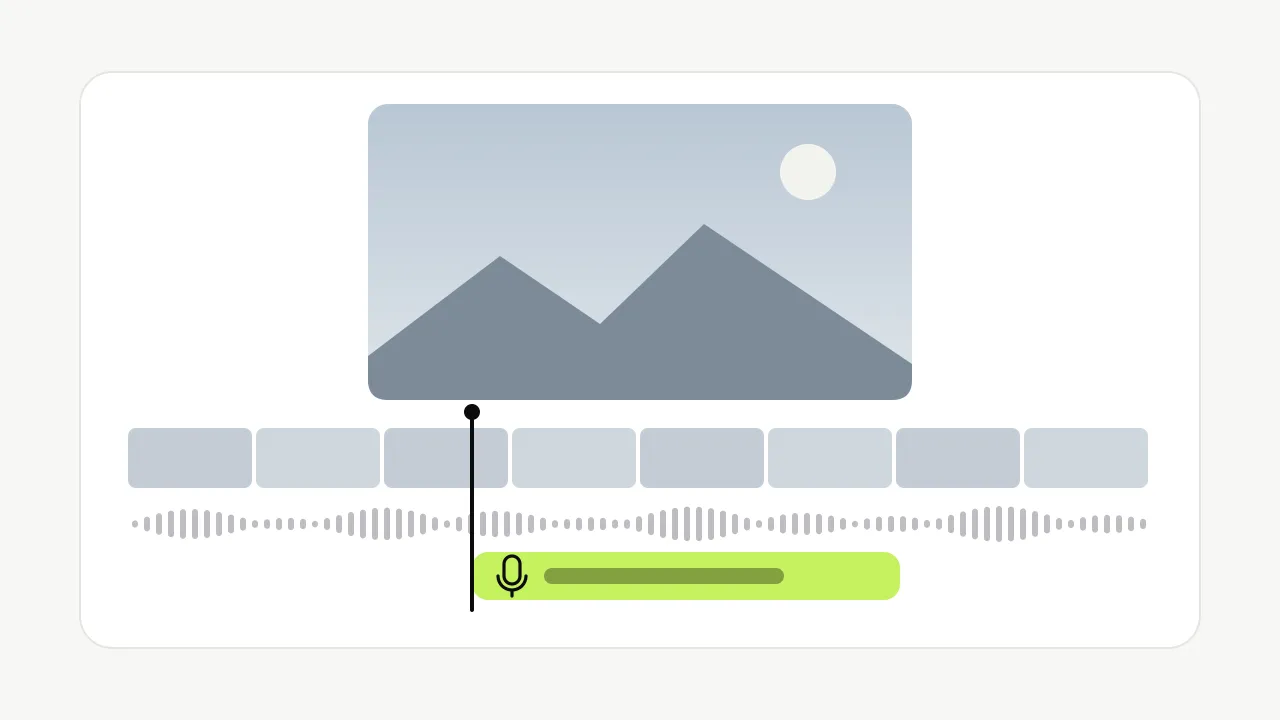
How it works
Drop your video
MP4, MOV, WebM or MKV. The recorder opens on Voice as soon as it is in.
Record from the playhead
Pick the moment, press record and talk. R throws a take away and counts into the next.
Balance and save
Set the voice and the video’s sound, trim or move the voice, and save an MP4.
What you get
- Recorded right over the video
- The voice starts where the playhead is, so it lines up with what is on screen.
- Retakes left out
- Takes you throw away while recording are left out; what stays plays back to back.
- Its own layer
- The voice is a sound on top: move it, trim it, fade it or set its volume.
- The video’s sound, your call
- Keep it under the voice, lower it, or mute it in the Audio tab.
- A clean voice
- Microphone test first, and noise reduction and even loudness when you save.
- Nothing uploaded
- Recorded and mixed on your device. No account, no watermark.
What people narrate
Travel and vlogs
Tell the story over the shots afterwards, calmly, instead of shouting over the wind.
Tutorials and demos
Explain a screen recording or a product clip step by step, retaking any line.
TikTok and Reels
A voice over a vertical clip, recorded on the phone that filmed it.
Presentations and lessons
Narrate slides or a lesson video in your own voice, in any language.
Recording a voice-over in the browser
A voice-over is easiest when you record it while watching: you see what you are talking about and the timing takes care of itself. Here you drop the video and the recorder is offered on Voice straight away. Move the playhead to where the narration starts, press record and talk; the voice is recorded on your device and comes back as a sound on top of the video, starting at that moment. Choose your microphone in the list, and try it first with the microphone test.
Nobody gets a long narration right in one go. While recording, press R to throw away the take you are on: a short countdown later you start that line again, and the thrown-away take is left out of what goes on top. Space pauses. If you finish and want to redo a part, record again from that moment; each recording is its own sound, so they can be moved and trimmed separately.
Then balance it. The voice comes in at full volume; the video’s own sound stays under it, and in the Audio tab you can lower or mute it, or let noise reduction clean the room out of both when you save. A music bed can go under everything as well, lowered whenever someone speaks; see adding music to a video. To write your narration as captions, the words can be transcribed on your device and burned in or saved as an SRT file.
This records your own voice. If what you need is the speaker’s voice made unrecognisable instead, see the voice changer; and if you only need to record your voice on its own, without a video, the online voice recorder saves it as an MP3. Everything here runs in your browser: the video and the voice stay on your device, and the finished MP4 is written there.
Tips for a natural voice-over
- Wear headphones if the video’s sound plays while you record, so it doesn’t leak into the microphone.
- Run the microphone test first and keep the same distance for every take.
- Record in short sections at the moments they belong to; it is easier than one long take.
- Lower the video’s own sound under the voice rather than muting it: a little room sound feels real.
- Leave a second of silence at the start of each take; it trims cleanly.
Private by construction
- Runs on your device
- Your browser opens, edits and saves the video. There is no server to send it to.
- Nothing is uploaded
- The counter in Shycut’s header measures every byte the app sends while you work. It stays at zero.
- Location data wiped
- Phones hide GPS positions inside videos. The file you save never carries them.
Questions
Is adding a voice-over free?
Yes, with no account, no watermark and no time limit from us. Everything runs on your device.
Can I record a voice-over on my phone?
Yes. Open the video in a current phone browser, allow the microphone and record; it goes on top of the video the same way.
What happens to the video’s own sound?
It stays under your voice. Lower it or mute it in the Audio tab, or keep it as it is.
Can I redo a line?
Yes. Press R while recording to throw away the current take and start it again; thrown-away takes are left out. You can also record a part again later and remove the old one.
Can it read my script in an AI voice?
No. This records your own voice. Shycut doesn’t clone voices or narrate scripts with a synthetic voice.
Is my video or voice uploaded?
No. Both stay on your device, where the voice is recorded and the finished video is written.
Your video stays with you.
Open Shycut, drop the video in and export. Free, with no account, and your video never leaves your device.
Choose your videoMore free tools
- Blur faces in video
- Pixelate a face
- Blur a moving face
- Blur children’s faces
- Blur license plates
- Dashcam video editor
- Remove location data
- Video metadata viewer
- Check a video’s location
- Remove silences
- Video voice changer
- Bleep out words in a video
- Add captions to video
- SRT subtitle generator
- Audio to text
- Resize for Reels & TikTok
- Crop a video
- Remove text from video
- Zoom in on a video
- Merge videos
- Merge portrait and landscape
- Add music to video
- Add text above a video
- Speed up video
- Screen recorder
- Podcast recorder
- Online voice recorder
- Mic test
- Audio editor
- Merge audio files
- Remove background noise
- Audiogram maker
- Motovlog editor
- Merge GoPro videos
- GoPro speed overlay
- Remove wind noise