Test your microphone, and hear yourself back
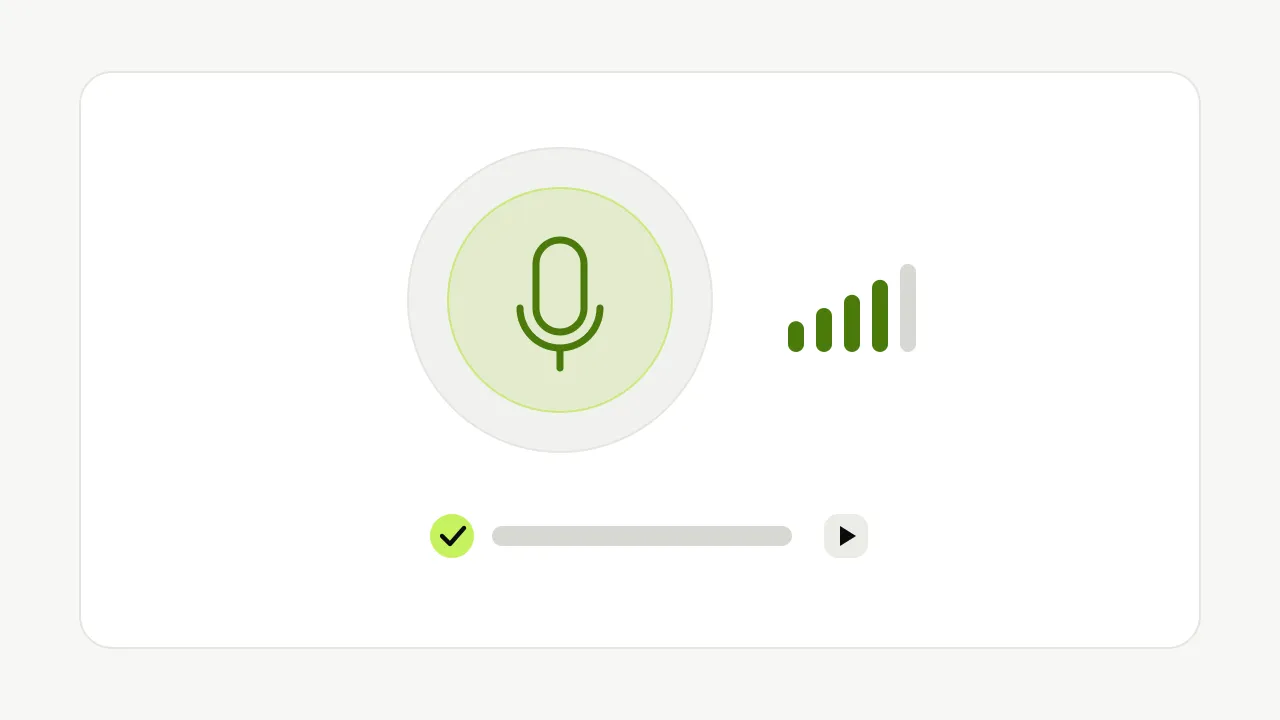
Press the button, allow the microphone and say something. Three seconds later you hear exactly what a recording would sound like, with a plain word on the level: too quiet, maybe distorting, or clear. Switch to another microphone in the list and try again. Nothing is kept and nothing leaves your device.
Say something: three seconds later you hear yourself back
Test my microphoneYour camera and microphone turn on only when you allow them. Everything is recorded on this device.
- Nothing uploaded
- No sign-up
- Free
How it works
Allow the microphone
The browser asks once. The meter moves as soon as it hears you.
Say a sentence
Three seconds are recorded, as you would speak in a call or a recording.
Hear it back
It plays at once, with a word on the level. Pick another microphone and compare.
How to test a microphone on each device
The test is the same in every browser. If nothing moves, the fix is usually a permission, listed here per device.
iPhone and iPad
- Open this page in Safari or Chrome and tap “Test my microphone”.
- Tap Allow when asked for the microphone.
- Say a sentence; it plays back after three seconds.
- Nothing moves? Settings → Safari (or Chrome) → Microphone, set to Ask or Allow.
Android
- Open this page in Chrome and tap “Test my microphone”.
- Allow the microphone when Chrome asks.
- Say a sentence and listen to the playback.
- Nothing moves? Settings → Apps → Chrome → Permissions → Microphone.
On a computer
- Open this page in Chrome, Edge, Firefox or Safari and click “Test my microphone”.
- Allow the microphone, then pick the one to test from the list.
- Say a sentence and listen; test the next microphone to compare.
- Nothing moves? On a Mac, System Settings → Privacy & Security → Microphone; on Windows, Settings → Privacy → Microphone.
What you get
- Hear yourself, not a graph
- The test plays your own voice back, the way others will hear it.
- A word on the level
- Too quiet, maybe distorting, or clear: judged from the meter while you spoke.
- Every microphone you have
- Built-in, headset, USB or Bluetooth: choose it in the list and test it again.
- Live level meter
- Bars that move with your voice before you test, so a muted microphone shows at once.
- Nothing kept
- The sample is played and forgotten. No account, no upload, no recording saved.
- Then record, if you like
- The same place records your voice or a podcast, cleaned up and saved as MP3.
When to test a microphone
Before a call or a class
Check that people will hear you, and that it is the right microphone, before you join.
A new headset or USB mic
Hear how it compares with the built-in one, and which one sounds better in your room.
Before recording
A podcast, a voice-over or a lesson: find the right distance before the take that counts.
When people say you’re quiet
Hear what they hear, then move closer or turn the input level up in your system settings.
What a microphone test tells you, and how to fix what it finds
A meter shows that a microphone hears something; hearing yourself back shows what it sounds like. This test does both. While the setup is open, bars move with your voice, so a muted or wrong microphone shows at once. Press the test and three seconds are recorded by the browser itself, then played straight back. The recording is not saved, not uploaded and gone when you close the page.
The word under the playback comes from the meter while you spoke. “Very quiet” means even your loudest moment stayed low: move closer, speak towards the microphone, check that it isn’t muted in hardware, or raise the input level in your system’s sound settings. “May be distorting” means the level sat at the top for a while: move back a little or lower the input. “Clear” means the level is where it should be; what is left is the room. A small, soft room with curtains sounds closer than a bare kitchen.
If you have more than one microphone, they are all in the list once the browser has been given access: a laptop’s built-in one, a headset, a USB microphone or Bluetooth earbuds. Choose one, test, choose another and test again; the difference is often bigger than you expect. Bluetooth headsets switch to a narrow “call” quality when their microphone is in use, which you will hear in the playback. Browsers turn on echo cancellation and noise suppression for microphones, so what you hear is close to what a call app sends.
Happy with it? The same place records. Start a recording and your voice is saved on your device, opened with the noise reduced and its pauses found for you to cut, ready to save as an MP3; see the online voice recorder, or the podcast recorder for an interview with a guest on a call. If the browser never asks for the microphone, it was blocked earlier: allow it from the icon in the address bar and reload.
Tips for a better microphone sound
- Keep the microphone a hand’s width from your mouth, a little to the side, so “p” and “b” don’t pop.
- Test with headphones on: speakers leak into the microphone and come back as echo in calls.
- Turn off fans and close the window before deciding a microphone is noisy.
- A USB or headset microphone near your mouth usually beats the laptop’s built-in one.
- Test again after changing anything: distance, level or microphone.
Private by construction
- Recorded on your device
- Your browser records, edits and saves it. There is no server to send it to.
- Nothing is uploaded
- The counter in Shycut’s header measures every byte the app sends while you work. It stays at zero.
- Safe while you record
- Every second is written to your device as you go, so a closed tab or a crash keeps what you recorded.
Questions
Is my test recording saved or uploaded?
Neither. The three seconds are recorded by your browser, played back and forgotten when the page closes. Nothing is sent anywhere.
Why does it say my voice is very quiet?
Even your loudest moment stayed low. Move closer, check the microphone isn’t muted on the device or headset, or raise the input level in your system’s sound settings, then test again.
Why can’t I hear anything in the playback?
The wrong microphone may be chosen, or it is muted in hardware. Pick another in the list; if the list is empty or the browser never asked, allow the microphone from the icon in the address bar.
Can I test a Bluetooth headset or a USB microphone?
Yes. Once the browser has access, every microphone appears in the list: choose it and test. Bluetooth headsets sound narrower while their microphone is on; that is the headset, not the test.
Does the mic test work on a phone?
Yes, in a current phone browser. Allow the microphone when asked; on iPhone, Safari’s settings decide whether sites may ask.
Can I record after testing?
Yes. The same recorder saves your voice on your device, opens it with the noise reduced and its pauses found to cut in one tap, and saves it as an MP3, M4A or WAV.
Your recording stays with you.
Start recording right in your browser. Free, with no account, and nothing you record leaves your device.
Start recordingMore free tools
- Blur faces in video
- Pixelate a face
- Blur a moving face
- Blur children’s faces
- Blur license plates
- Dashcam video editor
- Remove location data
- Video metadata viewer
- Check a video’s location
- Remove silences
- Video voice changer
- Bleep out words in a video
- Add captions to video
- SRT subtitle generator
- Audio to text
- Resize for Reels & TikTok
- Crop a video
- Remove text from video
- Zoom in on a video
- Merge videos
- Merge portrait and landscape
- Add music to video
- Add text above a video
- Speed up video
- Screen recorder
- Podcast recorder
- Online voice recorder
- Audio editor
- Merge audio files
- Remove background noise
- Add a voice-over
- Audiogram maker
- Motovlog editor
- Merge GoPro videos
- GoPro speed overlay
- Remove wind noise